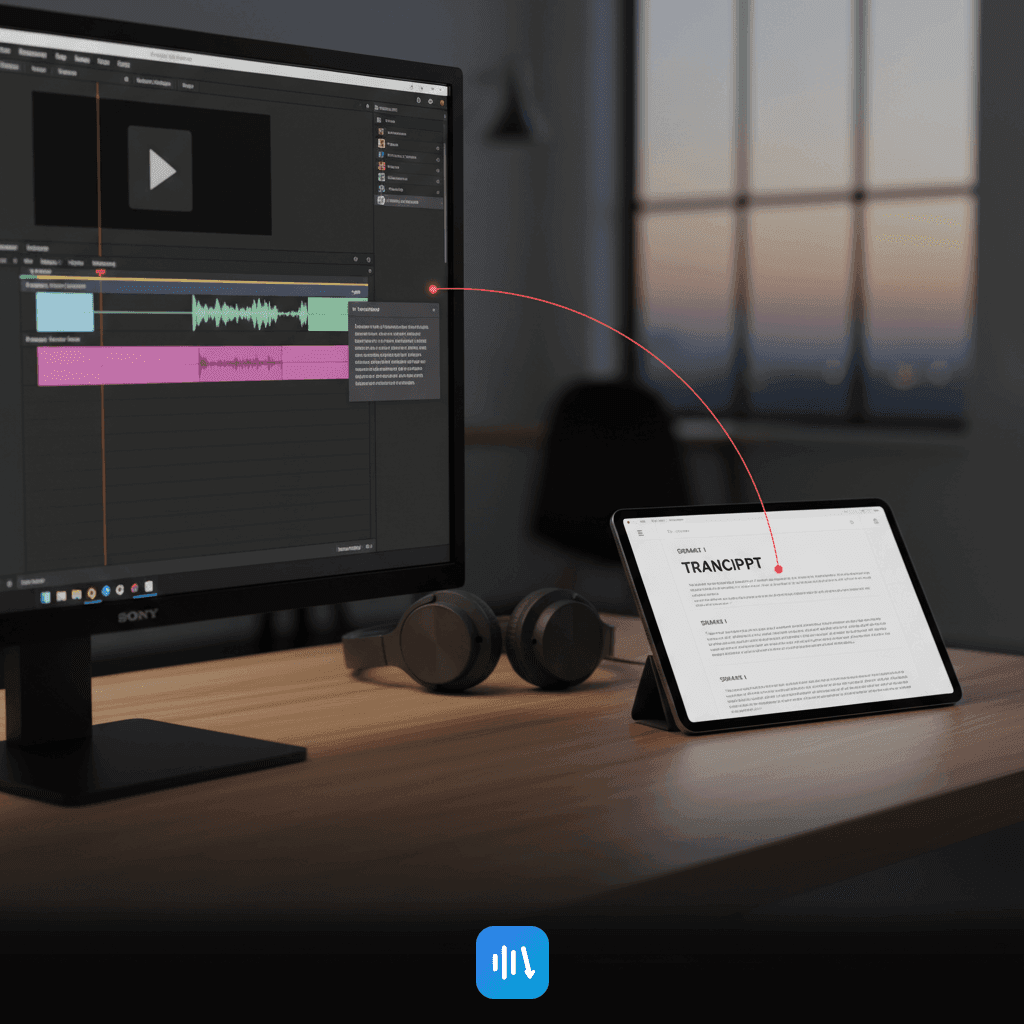
How to Transcribe Videos With AI: Beginner's Complete Guide
Discover a seamless video-to-text transcription workflow using AI. From uploading to exporting captions, this guide helps you optimize with DeepScribe.

DeepScribe Team
Content Team
How to Transcribe Videos With AI: Beginner's Complete Guide
Captions and transcripts are no longer just options—they're game-changers. Recent stats reveal that videos with subtitles achieve a staggering 91% completion rate compared to just 66% without, while captions can boost views by 12%. So, what if you could create both polished transcripts and subtitle files in one seamless workflow? Enter DeepScribe. This guide will walk you through a beginner-friendly, production-grade process that transforms video to text and captions without the hassle of multiple tools. You'll learn how to leverage transcription as a key production asset, streamlining your editing, SEO, and accessibility efforts. From upload to export, we simplify the entire journey, ensuring accuracy and efficiency every step of the way. Get ready to enhance your content strategy with precision and speed.
What You’ll Need to Transcribe Videos with AI (in 5 Minutes)
As you embark on your journey to effortlessly transcribe videos with AI, it’s crucial to understand what tools and formats you'll need. You’ll be amazed at how quickly you can start this process with platforms like DeepScribe.
Supported Video File Formats
One of the first steps is knowing your file formats. The most common video file types such as MP4 and WEBM are fully supported by DeepScribe. This compatibility means you don't need to waste time converting files just to start the transcription process. Having the right file format from the get-go streamlines the workflow and helps you get from video to text faster than ever. With DeepScribe, you simply upload your video directly and let the AI do the heavy lifting.
Audio Extraction: When Is It Necessary?
While it’s often unnecessary to extract audio first, knowing when to do so can be beneficial. If you’re dealing with a video with substantial background noise or inconsistent audio quality, extracting and cleaning the audio can improve transcription accuracy. However, for most typical conditions, DeepScribe's 99% accuracy rate (powered by OpenAI’s Whisper) handles these challenges efficiently without prior audio extraction. It’s all about using your judgment and the specifics of the audio quality involved.
Setting Up DeepScribe with Ease
Getting started with DeepScribe is designed to be user-friendly and straightforward. With its web-based SaaS platform, you’ll find that onboarding is as simple as dragging and dropping your MP4 or WEBM files into the interface. DeepScribe supports over 20 additional formats, ensuring you’re covered no matter the file type. Whether you’re a YouTuber, a podcaster, or part of a media team, this ease of setup saves you valuable time and resources.
Pro Tip: Whatever format you're starting with, aim for clear audio quality to optimize transcription efficiency. DeepScribe's AI can handle a lot, but good input leads to even better output.
Starting your transcription journey with the right formats, understanding when to extract audio, and setting up with DeepScribe means you’re ready to go from zero to transcription hero in under five minutes. Welcome to the future of seamless video transcription!
Step-by-Step: Video to Text Workflow in DeepScribe
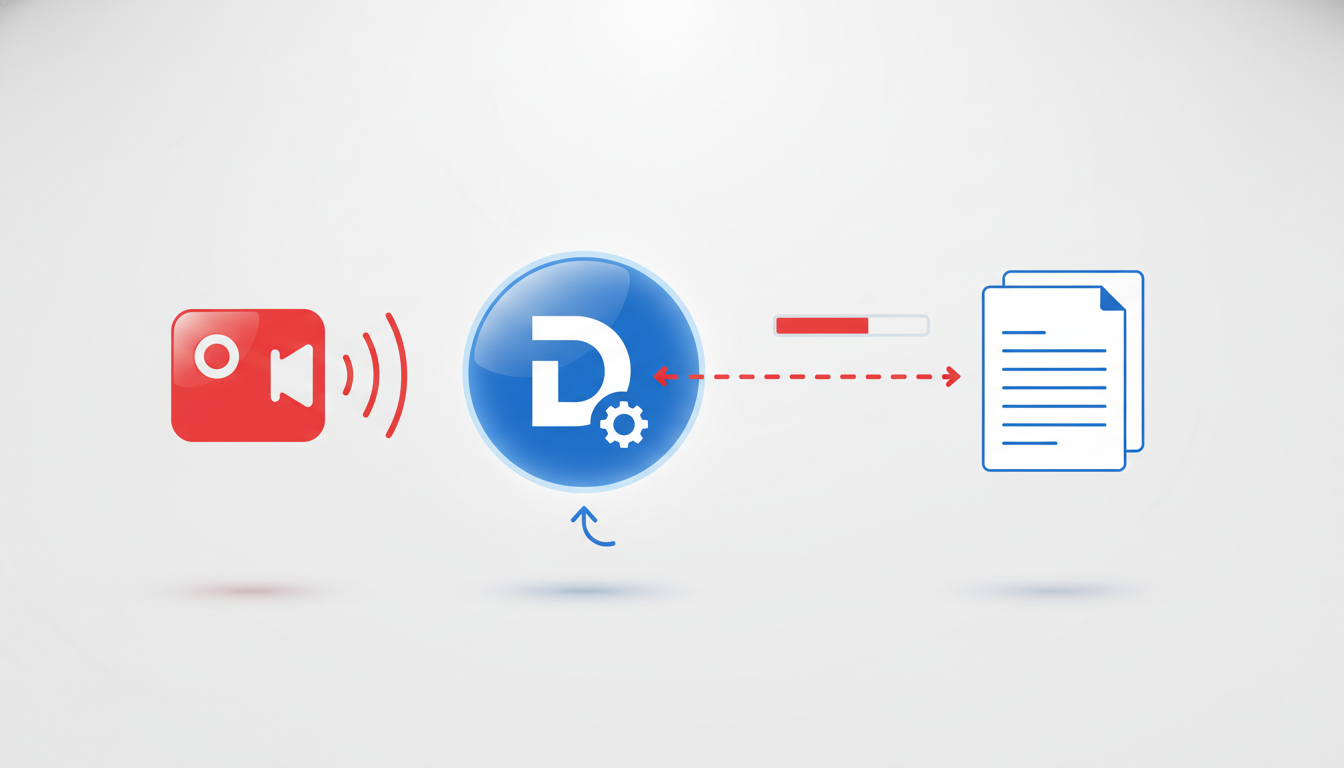
Getting started with transcribing videos using AI can feel overwhelming, but with DeepScribe, it's simple and efficient. Here, we’ll guide you through a step-by-step video-to-text workflow that ensures quality output every time.
Step 1: Upload Your Video
The first step is straightforward: upload your video file to DeepScribe. The platform supports a variety of video formats like MP4 and WEBM, ensuring flexibility with your media sources. Simply drag and drop your video file, or paste a URL if your video is hosted online. With Whisper-powered transcription, DeepScribe is geared to handle complex nuances in audio, making quick work of any accents or background noise in your file.
Pro Tip: Ensure your file is within the maximum size limits for your plan—25MB for Free, up to 10GB on Business—to avoid upload issues.
Step 2: Generate the First-Pass Transcript
Once uploaded, DeepScribe springs into action, generating a first-pass transcript. This occurs at 3–5 times real-time speed, so expect your transcript to be ready in a matter of minutes. The AI aims for 99% accuracy, which is crucial given that videos with detailed captions can achieve 91% completion rates compared to just 66% without. This is your starting point: a clean draft where most content is accurately captured.
Key Takeaway: Research shows that captions can boost video views by 12%, making this step invaluable for engagement and SEO.
Step 3: Clean Up the Transcript
After generating the initial transcript, the next step is refinement. This involves correcting any miscaptured words, adding punctuation, and addressing any technical jargon or specific industry terms that the AI might have missed. This cleanup is essential not only for accuracy but also for readability, ensuring that the final product is polished.
- Check proper names and jargon: Ensure that all names, brands, or industry-specific terms are correct.
- Format for readability: Adjust paragraph breaks and punctuation for a natural reading flow.
Common Mistake: Skipping the cleanup. Even with high accuracy, minor errors can diminish professionalism and clarity.
Step 4: Add/Fix Speaker Labels
Speaker identification is critical, especially in multi-speaker scenarios like interviews or podcasts. DeepScribe’s automatic speaker detection can label different speakers, but it’s essential to review and correct any errors for precision. Accurate attribution enhances viewer understanding and supports detailed action items or summaries.
- Why it matters: Clear speaker labels aid in following the conversation flow and are crucial for delivering actionable insights.
- How to check: As you review the transcript, ensure each speaker’s words are accurately labeled and consistent throughout the document.
Expert Insight: Accurate speaker labeling transforms transcripts into valuable assets for content creators, improving both accessibility and interaction.
By following these steps, you’ll go beyond merely generating text—you’ll produce a polished, production-ready transcript that serves as a cornerstone for captions and other repurposing needs. The efficiency of DeepScribe's workflow not only saves you time but also enhances the overall quality and accessibility of your video content.
For more detailed insights on transcription and captioning, you can explore how DeepScribe builds on these capabilities to meet diverse content creation needs.
How to Improve Video Transcription Accuracy (Beginner Playbook)
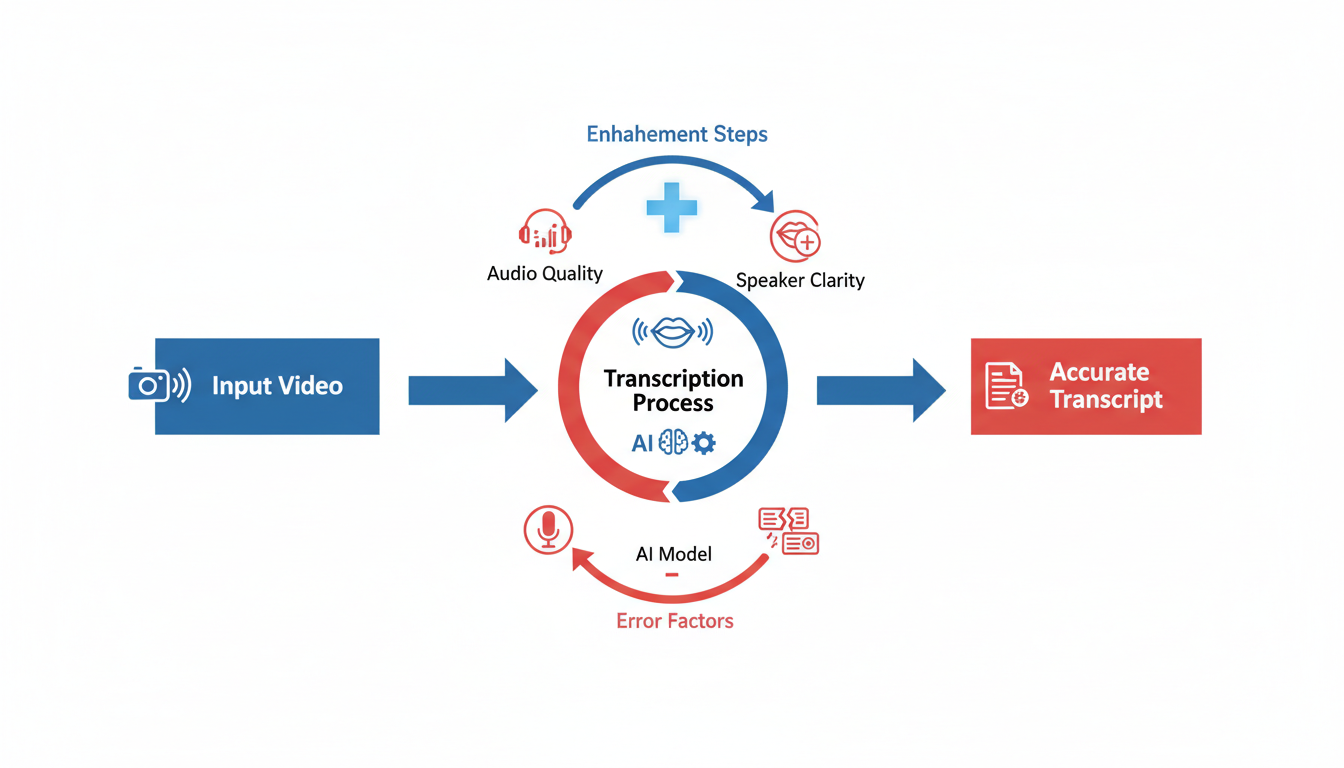
Achieving exceptional transcription accuracy can make all the difference when you’re transforming video content into text. Let's navigate through strategies that can enhance the precision of your transcriptions with DeepScribe’s robust platform.
Pre-Upload Checks
Before uploading your video to DeepScribe, it’s crucial to optimize your file for transcription accuracy:
Clear Audio Quality: Ensure the audio is free from background noise. Crisp audio enhances AI’s ability to distinguish words, which directly affects transcription accuracy.
Distinct Speaker Separation: Use multiple microphones during recording or consider a microphone setup that captures clear separation between speakers. This aids in accurate speaker labeling, a key feature of DeepScribe.
Audio Levels: Maintain consistent audio levels across the video. Sudden spikes or dips can confuse transcription algorithms.
Language and Accent Clarity: Speak clearly and at a steady pace. If the content has jargon or technical terms, consider providing a glossary for AI references.
High-Quality Video Format: Upload videos in supported formats like MP4, ensuring there's no data compression that affects audio quality.
Pro Tip: Many professionals find that starting with high-quality audio can boost initial AI transcription accuracy by up to 20% compared to noisy recordings.
Post-Upload Quality Assurance
Once your video is uploaded, employ these quality assurance steps with DeepScribe for a refined transcript:
Review Automated Transcription: Scrutinize any flagged sections or words the AI is uncertain about. This can often indicate complex terms or names needing manual correction.
Speaker Labels: Validate DeepScribe’s automatic speaker labels, especially in multi-speaker contexts like interviews. Accurate labeling is crucial for editing and content repurposing.
Punctuation and Grammar: Check for misplaced punctuation which can change meaning. DeepScribe allows you to easily make such adjustments.
Custom Vocabulary: For frequently appearing unique terms, utilize custom vocabulary features to teach the AI for future accuracy.
Feedback Loop: Regularly correct AI’s mistakes to help improve future transcriptions through machine learning adjustments.
Expert Insight: Leading AI platforms reach up to 99% accuracy, as DeepScribe does, when consistently applying thorough QA processes.
Setting Realistic Accuracy Expectations
While it’s possible to approach near-perfect transcription with AI, it's important to have realistic expectations:
- 99% Accuracy Targets: Achievable in controlled conditions with clear audio and distinct speakers.
- Challenging Scenarios: Expect lower accuracy with overlapping dialogue, heavy accents, or continuous background noise.
With advancements in AI, transcription processes can run 3–5× real-time speed, providing exceptional efficiency gains. Implementing these strategies consistently will not only save time but also enhance the quality of your transcripts, amplifying your overall content accessibility and SEO impact.
Export Your Transcript the Right Way (TXT, DOCX, PDF)
Once you’ve navigated the transcription process with DeepScribe, exporting your transcript in the right format is key to maximizing its utility. Whether you're sharing a document with a team or integrating it into a larger project, choosing the correct export format can simplify your workflow.
Understanding Export Formats
TXT: Ideal for straightforward text needs, TXT is a lightweight format perfect for quick edits and rough drafts. It's universally compatible, ensuring smooth sharing with collaborators who might not have specific software.
DOCX: This format is the go-to for more elaborate document needs. Use DOCX when you need to incorporate visuals, advanced formatting, or when sharing with stakeholders who prefer a polished presentation. It’s widely accepted in professional and academic environments.
PDF: When consistency is paramount, PDF maintains document formatting across all devices—great for finalized reports or when you need to ensure that recipients see the document exactly as intended.
Plan-Dependent Export Options in DeepScribe
DeepScribe offers a variety of export options tailored to different plans, allowing you to choose how best to access and distribute your transcriptions:
| Plan | TXT | DOCX | SRT | VTT | |
|---|---|---|---|---|---|
| Free | ✓ | ||||
| Basic | ✓ | ✓ | |||
| Pro | ✓ | ✓ | ✓ | ✓ | ✓ |
| Business | ✓ | ✓ | ✓ | ✓ | ✓ |
Key Takeaway: Choosing the right format based on your needs can significantly streamline your workflow. Pro tip: While the Pro plan offers the flexibility of all formats, even the Basic plan provides essential capabilities for subtitle-ready exports.
For further guidance, you might want to explore our DeepScribe blog for tips on optimizing transcription usability in various formats.
Export Captions: Subtitle Export SRT/VTT (and When to Use Each)
When it comes to exporting captions from your transcriptions, understanding the differences between SRT and VTT formats is key. Both are widely used for subtitles, but each has specific advantages depending on your platform and accessibility needs.
SRT vs VTT: Which One to Choose?
SRT (SubRip Subtitle) is probably the most common subtitle format. It is simple, with a text-based structure that includes numbered lines and timestamps. This format is universally accepted on most video platforms like YouTube and Vimeo. If you need basic subtitles without bells and whistles, SRT is a solid choice.
VTT (WebVTT), or Web Video Text Tracks, builds on the SRT foundation by adding more capabilities. It supports metadata such as language specification and includes styling options (like color and font), beneficial for creating enhanced and interactive video experiences. VTT is often preferred for HTML5 video players and platforms like Netflix.
Here's a quick comparison:
| Feature | SRT | VTT |
|---|---|---|
| Readability | Basic text and timestamps | Text, timestamps, and metadata |
| Styling | No | Supports styling features |
| Use Cases | Universal, simple needs | Advanced web, styled captions |
| Compatibility | Widely supported | Supported in modern web players |
Caption QA Checklist
No matter which format you choose, quality control is crucial to ensure your captions are accurate and user-friendly. Here’s a straightforward Caption QA Checklist to follow:
- Line Length: Keep lines under 32 characters to prevent text clutter and ensure readability.
- Reading Speed: Aim for captions to be on-screen for 1–6 seconds, matching the pace at which an average viewer reads.
- Punctuation: Proper punctuation is a must—it clarifies meaning.
- Speaker Identification: Use labels effectively if multiple speakers are involved.
- Sync Accuracy: Double-check timing to avoid drift where captions don’t match the dialogue.
Pro Tip: Use DeepScribe's features to automatically ensure your captions meet these standards, giving you polished SRT/VTT files ready to enhance your videos' accessibility and engagement.
By understanding when and how to use each format, alongside a thorough QA process, you'll ensure your video content is both accessible and engaging, leveraging the power of subtitles to maximize viewer retention and accessibility.
Common Problems (and Quick Fixes)
When working with AI transcription tools like DeepScribe, you may encounter some common challenges. Here's how to tackle them effectively, ensuring your workflow remains smooth and productive.
Merged Speaker Lines
Key Insight: Ensuring proper speaker differentiation is crucial, particularly in multi-speaker scenarios like interviews or podcasts.
The Problem: Sometimes speech from multiple speakers can get merged into a single line, making it difficult to attribute text accurately.
Quick Fix: Use DeepScribe’s automatic speaker detection and labeling. It's designed to identify and correctly label different speakers. In cases where this isn't perfect, manually adjust the labeling during the QA process. Ensuring clear audio and distinct speaker turns can also improve automatic detection.
Pro Tip: Regularly check for merged lines especially in overlapping conversations, and adjust the speaker labels early to streamline your post-upload edits.
Timing Drift
Key Insight: Proper synchronization between audio and transcription ensures readability and engagement.
The Problem: Transcription time stamps may not perfectly align with the audio, causing a "drift," which can mislead viewers or listeners, especially when creating captions.
Quick Fix: Utilize DeepScribe’s capability to export accurate subtitle formats (SRT/VTT). These formats come with timing details you can adjust via caption editing software if needed. Before publishing, always preview your video with captions to catch any drift.
Takeaway: Accurate timing is crucial for viewer engagement, with stats showing 91% completion with synced subtitles versus 66% without.
Background Noise
Key Insight: Clean audio results in clearer transcriptions.
The Problem: Background noise can interfere with the transcription process, leading to inaccuracies.
Quick Fix: Prior to transcription, perform pre-upload checks, such as minimizing background noise during recording. While tools like DeepScribe tolerate some noise due to Whisper-powered accuracy, clear audio input enhances overall quality. Consider using noise-canceling tools during recording to maintain audio quality.
Common Mistake: Overlooking the impact of ambient noise. Always aim for the highest audio quality to facilitate the best transcription accuracy.
Technical Terms
Key Insight: Ensure technical jargon is accurately transcribed to maintain content credibility.
The Problem: AI may struggle with domain-specific jargon or complex terms, leading to inaccuracies.
Quick Fix: Utilize DeepScribe's customizable features where you can add frequently used or industry-specific terms to improve accuracy. During the post-upload check, manually correct any missed technical terms.
Pro Tip: Consistently update your glossary of terms within the tool to improve AI learning and transcription precision over time.
By staying proactive with these quick fixes, you can maintain high transcription accuracy and efficiency, leveraging DeepScribe to its fullest potential.
Why Transcripts + Captions Pay Off (Stats You Can Justify Internally)
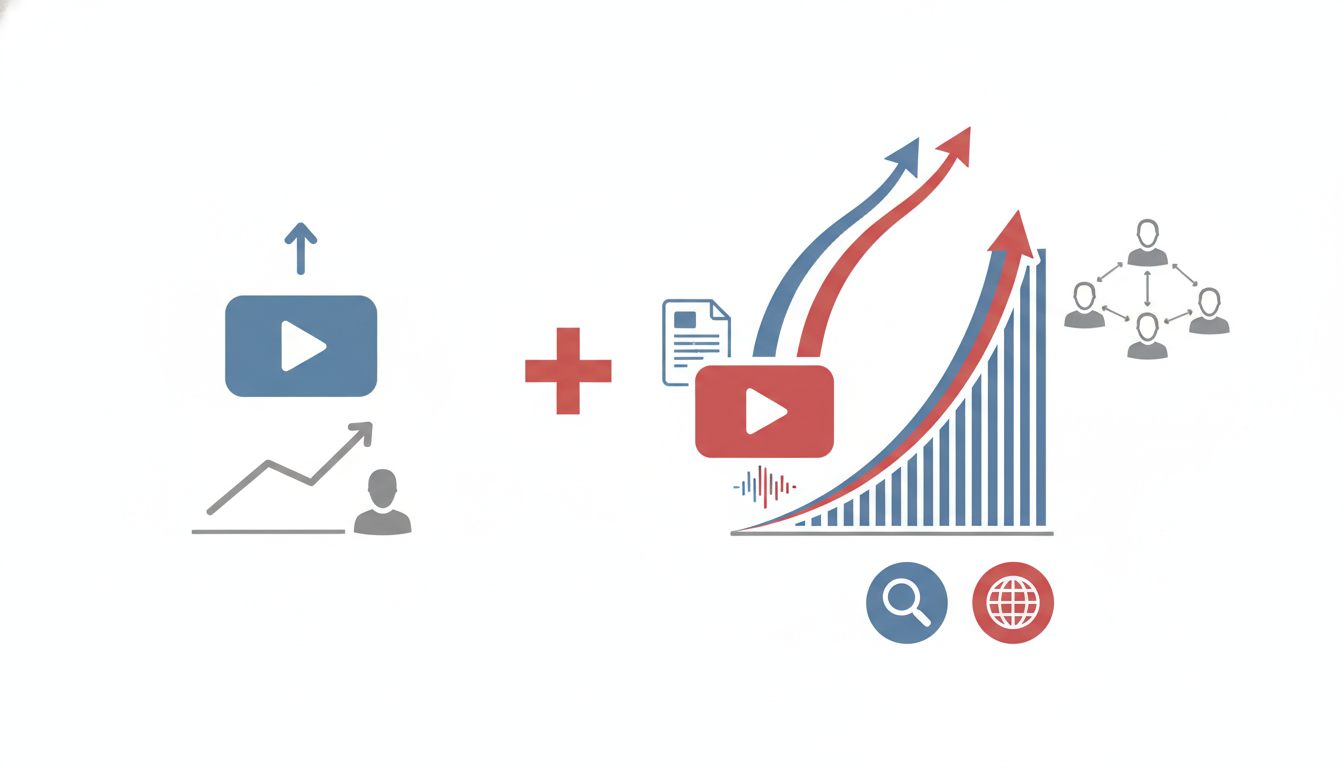
To truly understand the benefits of transcripts and captions, let's dive into the numbers. Videos with subtitles boast a 91% completion rate compared to just 66% for those without. This powerful statistic highlights how captions keep viewers engaged, ensuring they don't miss the message. Moreover, videos with captions see a 12% increase in overall views, tapping into audiences who may be hard of hearing or for whom English isn't a first language. This accessibility expands your reach and engagement significantly.
Now, consider the efficiency gains. Transcription as a process asset is a game changer. Automated tools like DeepScribe operate at 3–5 times real-time speed, a massive leap from traditional manual methods. This speed enables content creators to pump out more material, repurpose content swiftly, and meet tight deadlines without breaking a sweat. The adoption of AI transcription tools recovers approximately four hours per week per team member — that's over a month of work saved annually.
Key takeaway: Transcripts and captions enhance both engagement and efficiency. They're not auxiliary features but essential tools for maximizing content impact.
This efficiency isn't just hypothetical. 85% of organizations plan to adopt AI transcription solutions by 2025, driven by these compelling advantages. Automated transcription isn't merely a trend; it's becoming the norm for maintaining a competitive edge in content creation.
Furthermore, captions play a crucial role in video SEO. Search engines can crawl text far more effectively than video, so having a detailed transcript boosts discoverability. By investing in high-quality captions, you make your content searchable and increase its organic reach.
Ultimately, investing in transcription and captioning isn't just about accessibility — it's a tactical business decision that enhances viewer engagement, improves content efficiency, and maximizes SEO potential. These benefits, underpinned by hard stats, make a compelling case for prioritizing transcripts and captions in any video production workflow.
FAQ: AI Video Transcription for YouTubers and Media Teams
When diving into AI transcription, many YouTubers and media teams often ask: "How quickly can I turn my MP4 video into a transcript?" With DeepScribe, this process is both fast and efficient. Once you upload your MP4, which DeepScribe explicitly supports alongside other formats like MPEG-4 and WEBM, you can expect your transcript to be ready in minutes, thanks to AI that runs 3-5× faster than real-time.
Turnaround time expectations are another common concern. With DeepScribe, the time it takes to transcribe largely depends on the length of your video and your chosen plan. For shorter videos, transcription can be nearly instantaneous. Higher-tier plans allow for even faster processing and priority support, ensuring you’re never waiting long to get your content ready for the next production step.
Privacy and security also come up frequently. With encryption in place, and a policy of automatic deletion after processing, your content remains secure. Plus, DeepScribe is SOC 2 Type II compliant, providing additional peace of mind.
For those tackling multi-speaker videos, speaker labeling is a key feature that ensures each voice is accurately attributed, a crucial component when creating professional transcripts and captions for accessibility and SEO. DeepScribe's advanced speaker detection excels in this area, making it easier for creators to focus on quality content without worrying about misattribution.
By using DeepScribe, you are not only getting a high-quality transcript but a seamless entry into creating captions that enhance viewer engagement. Statistics show that videos with subtitles achieve a 91% completion rate versus 66% without, and experience a 12% increase in views. This makes transcription not just an add-on, but a necessary component of smart content strategy.
Next Steps: Your Repeatable Checklist + Links to Deeper Guides
Embarking on your video transcription journey can be effortless with a systematic approach. Here’s a repeatable checklist to ensure you're leveraging DeepScribe for efficient, accurate transcription and captioning.
Your Step-by-Step Checklist
Upload Your Video
- Start by uploading your MP4 file into DeepScribe. The user-friendly interface supports drag-and-drop functionality, making it hassle-free.
Generate a Clean Transcript
- Allow DeepScribe’s AI to perform its magic. With its Whisper-powered technology, you can expect 99% accuracy in most conditions, particularly with clear audio.
Apply Speaker Labels
- After generating the transcript, ensure correct speaker identification. This step is crucial for multi-speaker content like podcasts or interviews. DeepScribe excels in speaker detection and maintains the integrity of each voice.
Quality Assurance (QA) Check
- Perform a quick QA on the transcript. Review it for punctuation, jargon, and speaker attributions. This minimizes errors before exporting your final product.
Export in Desired Formats
- Choose the appropriate export format:
- TXT for simple text records.
- DOCX/PDF for comprehensive documents for stakeholders.
- SRT/VTT for subtitle integration into your video content.
- Choose the appropriate export format:
Use the Caption QA Checklist
- For subtitles, ensure readability by checking line breaks, timing accuracy, and overall flow. This helps maintain viewer engagement, a large factor in why subtitles can boost completion rates by 25%.
Valuable Resources
For a deeper dive into maximizing your transcription workflow, explore these guides:
- How to Transcribe Zoom Meetings with AI: A Step-by-Step Guide: Ideal if you’re navigating meeting transcriptions.
- How to Transcribe Audio to Text for Free: A Step-by-Step Guide: A great resource for beginners seeking cost-effective solutions.
- How to Transcribe Video for Free (Step-by-Step): Perfect for exploring free transcription options.
By integrating AI into your transcription process, you're not just enhancing accessibility but also driving engagement. With DeepScribe, you recover valuable time—on average, saving about 4 hours weekly per team member. This makes transcription a cornerstone of productive and efficient content creation.
Begin your DeepScribe journey now with these steps, and unlock a seamless transcription experience!
Frequently Asked Questions
How does DeepScribe handle multiple speakers?
DeepScribe uses AI to differentiate and label multiple speakers for clarity.
What formats does DeepScribe support for export?
DeepScribe supports TXT, DOCX, PDF, SRT, and VTT formats.
How accurate is AI transcription with DeepScribe?
DeepScribe can achieve up to 99% accuracy under optimal conditions.
How do I improve caption timing accuracy?
Using the built-in QA checklist helps maintain precise caption timing.
Is DeepScribe secure for sensitive videos?
Yes, DeepScribe offers end-to-end encryption and automatic file deletion.
Conclusion
By mastering the art of video transcription with AI, you're well on your way to enhancing both accessibility and engagement for your content. Here's a handy 10-point checklist to guide you through the process:
- Upload your video files to your chosen transcription platform.
- Verify audio clarity and ensure language settings are correct.
- Label speakers accurately for comprehensive understanding.
- Export the transcript in your preferred format such as TXT or SRT.
DeepScribe streamlines this workflow with whisper-powered accuracy and efficient processing. Whether you're a content creator or run multilingual meetings, DeepScribe offers a user-friendly experience—try it yourself on the DeepScribe website for free, no credit card required.
For further optimization, explore our specific guides on YouTube transcription, SRT export, speaker identification, and utilizing free transcription tools with DeepScribe.
Written by

DeepScribe Team
Content Team
The DeepScribe content team shares insights on audio transcription and AI technology.
Related Articles
Continue reading about this topic
How to Transcribe Videos With AI: A Beginner's Guide
Discover a streamlined video-to-text workflow using DeepScribe. Learn to upload, transcribe, clean, label speakers, and export subtitles efficiently.

DeepScribe Team
March 15, 2026 · 18 min read · 3,563 words