How to Transcribe Zoom Meetings with AI: A Step-by-Step Guide
Unlock the fastest ways to get accurate Zoom transcripts with speaker labels. Learn step-by-step workflows with Zoom and DeepScribe AI.

DeepScribe Team
Content Team
How to Transcribe Zoom Meetings with AI: A Step-by-Step Guide
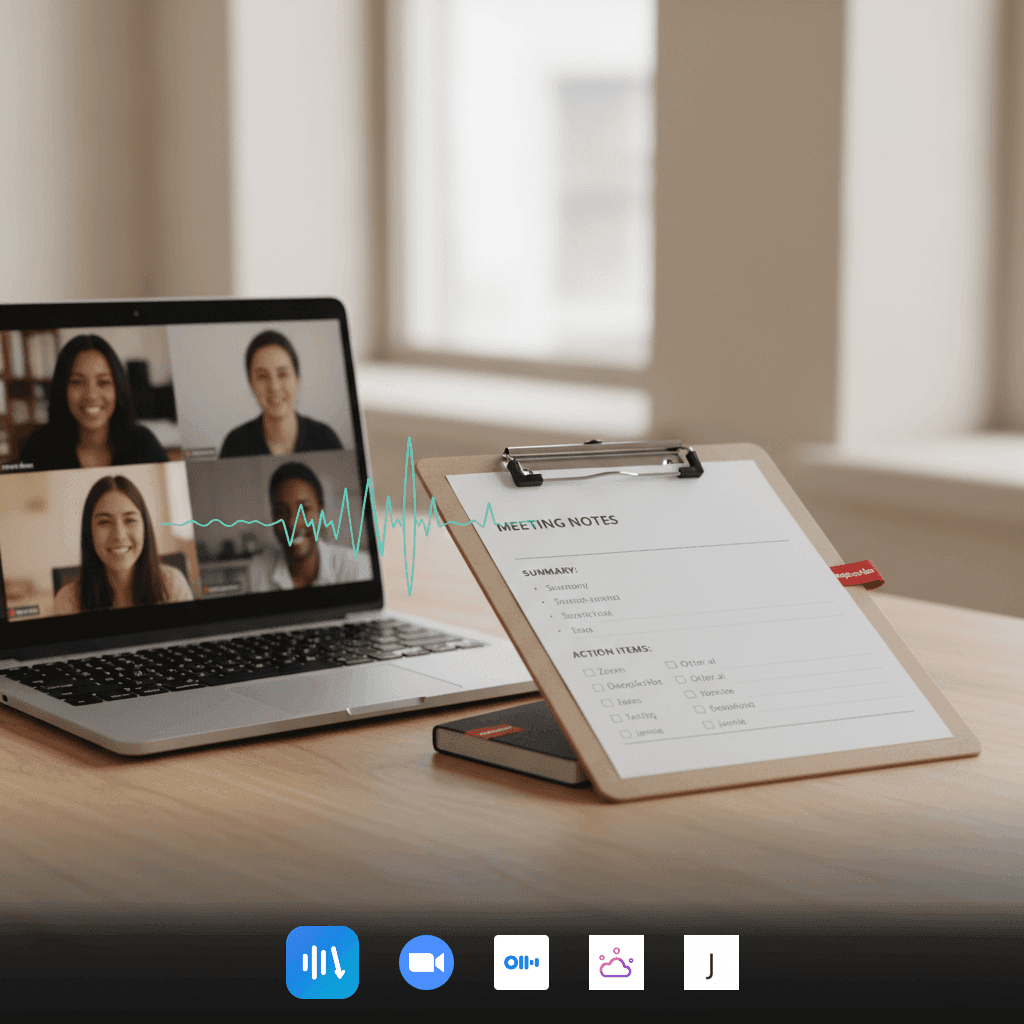
You leave a Zoom meeting brimming with decisions and action items, only to find the next day that nobody can agree on what was decided. Sound familiar? Imagine if you could convert your meeting conversations into accurate, speaker-labeled transcripts and actionable notes in minutes. This post unveils two robust AI transcription workflows—using Zoom’s native transcription tools and DeepScribe. Dive in to explore these step-by-step processes and a decision framework to help you choose the path that best fits your needs. Whether it’s capturing every word or converting conversations into strategic outputs, we’ve got you covered.
Introduction: The Importance of Accurate Zoom Transcripts
Imagine wrapping up a Zoom meeting with several key decisions and action items, only to find the consensus wavering the next day. Sound familiar? This misalignment can happen when meeting discussions aren't effectively captured and shared. Accurate Zoom transcripts are crucial for team alignment and ensuring that every member has access to the same information. They help alleviate misunderstandings, keep everyone on the same page, and significantly enhance accessibility for remote or hard-of-hearing team members.
Today, we'll explore two robust workflows to achieve this: using Zoom’s AI Companion and the specialized capabilities of DeepScribe. Both approaches aim to deliver comprehensive, speaker-labeled transcripts that are accurate and ready for action.
For those prioritizing completeness and actionability, DeepScribe goes beyond transcription by providing AI-driven summaries and actionable items extracted directly from meeting content. This tool transforms a static transcript into a dynamic notetaking system that’s ready to inform post-meeting follow-ups.
Accurate transcripts aren't just about recording what was said; they’re about boosting productivity and ensuring every voice is heard, regardless of technical or communicational barriers. With tools like Zoom and DeepScribe, you can confidently capture, review, and act on meeting insights swiftly, making your team more connected and efficient.
Workflow Comparison: Zoom AI vs. DeepScribe
When it comes to transcribing Zoom meetings, both Zoom AI and DeepScribe offer unique pathways to achieve high-quality outcomes. Let's dive into key differences in terms of accuracy, retention, and post-meeting outputs, and help you decide which tool fits your team’s needs best.
Accuracy and Speaker Labeling
Zoom AI provides reliable capture of meeting content. With context-aware models and speaker diarization, Zoom AI effectively manages task extraction and sentiment analysis. However, Zoom AI can sometimes struggle with hybrid audio overlaps, as noted by Jamie’s developers.
DeepScribe takes accuracy a step further by leveraging OpenAI’s Whisper technology, which offers top-tier performance in handling accents and background noise. Its speaker detection and labeling capabilities are a standout for interviews and multi-speaker meetings. Thus, if speaker attribution is critical, DeepScribe emerges as a strong contender.
Retention and Governance
A major consideration is transcript retention. Zoom transcriptions are available for up to 120 days, and in some circumstances, as short as 30 days. This limitation could pose challenges in maintaining institutional memory.
DeepScribe provides more flexible options for storing and managing transcripts, with plan-based governance that includes unlimited transcription on higher tiers. This means critical meeting records are not at risk of vanishing after a few months.
Post-Meeting Outputs
Both tools transform transcripts into actionable meeting minutes, but they differ in their approaches. Zoom AI's offerings include transcription and basic summarization without additional costs for certain plans, emphasizing seamless zoom integration.
DeepScribe excels by generating comprehensive AI summaries, action items, and follow-up emails, available even on more comprehensive tiers. Its ability to export in multiple formats (DOCX, PDF, SRT, VTT) makes it especially valuable for teams that need versatile output capabilities.
Here’s a quick comparison to determine the best fit:
Feature | Zoom AI | DeepScribe |
|---|---|---|
Accuracy | Reliable | Whisper-powered high accuracy |
Speaker Labeling | Context-aware models | Advanced speaker detection |
Retention | 120 days (sometimes 30 days) | Unlimited (on higher tiers) |
Exports | Limited formats | DOCX, PDF, SRT, VTT |
Output Extras | Basic summaries | Comprehensive summaries, AI action items |
Integration | Built-in Zoom | Broad platform support |
For teams seeking customization and robust post-meeting tools, DeepScribe is the recommended choice. For seamless integration with Zoom’s ecosystem and basic needs, Zoom AI might suffice.
To explore how DeepScribe can enhance your meeting productivity, see their blog for more insights.
Prerequisites Checklist
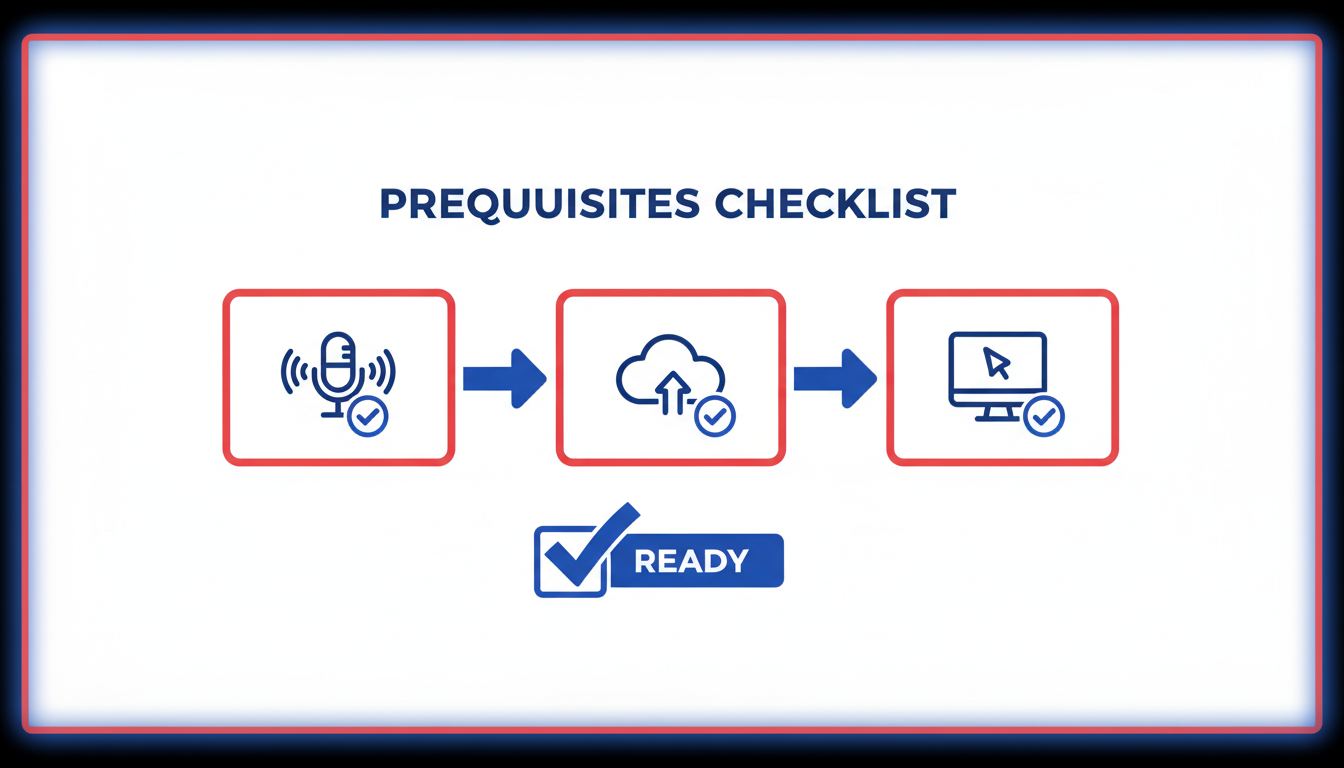
Before diving into transcribing your Zoom meetings with AI, it's essential to set up a few prerequisites. This checklist will make sure you’re ready to capture every word, attribute speakers accurately, and generate actionable insights seamlessly.
Permissions and Consent Requirements
First things first, ensure you have the necessary permissions and consent. Make sure all participants are aware and agreeable to the recording and transcription of the meeting. It's not just a best practice but often a legal requirement depending on your location. Explicit consent is crucial, so consider adding a reminder at the beginning of each session to get verbal agreement.
Zoom AI Transcription Settings
Next, let’s adjust your Zoom recording settings for optimal transcription. Enable the cloud recording option if you haven’t already, as this is the gateway to accessing Zoom's AI transcription features. Navigate to your Zoom settings and activate “Audio Transcript” under Advanced Settings. This will ensure your meeting recordings are automatically transcribed once the session ends.
Interface Setup
Setting up the right interface configuration is critical for a smooth workflow. Make use of the Zoom AI Companion, which is included at no extra cost in Pro, Business, and Enterprise plans as of 2025. This tool not only provides high accuracy transcription but also speaker diarization, which enhances your ability to track who said what.
Be aware of transcript retention limits: Zoom transcripts are saved for up to 120 days, but sometimes as short as 30 days. For those who need to keep meeting records longer, consider exporting them in multiple formats like VTT or DOCX.
By ensuring these settings are correctly configured, you’ll smoothly transition into using AI to create reliable, speaker-labeled transcripts that are ready for insights and follow-ups. Now you’re all set to move on to the next steps of capturing and converting your meeting discussions into structured action items using DeepScribe and Zoom’s built-in tools.
Workflow A: Using Zoom's Built-In Transcription
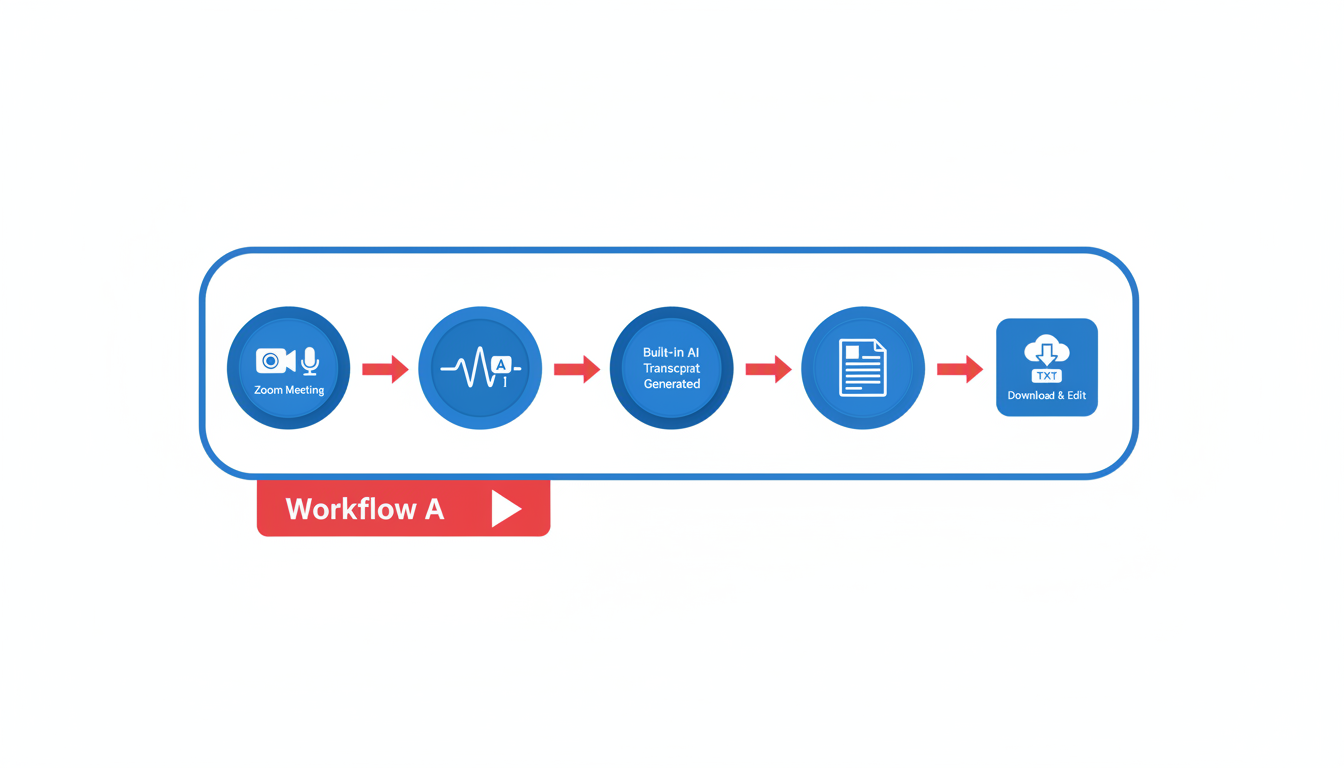
When it comes to transcribing Zoom meetings seamlessly, using Zoom's built-in transcription is a straightforward and efficient option. Let's dive into the process of enabling this feature, understanding the retention and export of VTT transcripts, and how you can share them effortlessly.
Enabling Zoom's Transcription
To start leveraging Zoom’s built-in transcription, follow these simple steps:
Access Your Zoom Account: Ensure you are signed in to your Zoom account with either a Pro, Business, or Enterprise plan. As of 2025, these plans include the Zoom AI Companion features at no extra cost.
Navigate to Settings: Head over to the 'Settings' section on the Zoom web portal. Under the ‘Recording’ tab, find the option for ‘Cloud Recording.’
Activate Transcription: Enable the ‘Audio transcript’ option within the Cloud Recording settings. This will allow Zoom to process and provide a text transcript from the recorded meetings.
Save Changes: Don't forget to save your settings to initiate transcription for future recordings.
With transcription activated, every meeting recorded to the cloud will automatically generate a VTT (Video Text Tracks) transcript. Zoom’s AI aims for reliable transcription accuracy, positioning it as a leader in this space.
Understanding VTT Transcripts and Retention Limits
Post-meeting, you will receive an email with the transcript once it’s processed. These transcripts are in VTT format, which is ideal for synchronization with video content, yet easily convertible to formats like DOCX or PDF for broader accessibility.
Key Takeaway: Transcripts are available for up to 120 days, although certain users might encounter a 30-day limit depending on their organizational settings. Retain and back up important transcripts timely to avoid losing crucial meeting records.
Exporting and Sharing Transcripts
Sharing your Zoom transcripts is as crucial as creating them. Here's how you can export and distribute your transcripts:
Download and Convert: Access the transcript from your Zoom account under 'Recordings.' Download it to your local system. Should you require formats like DOCX or PDF, conversion tools or simple copy-paste operations into word processors can help.
Easy Distribution: Email your team or upload the converted transcripts to shared drives or platforms like Slack. This ensures all team members, especially remote participants or those with accessibility needs, can review the meeting content conveniently.
By utilizing Zoom's built-in transcription effectively, you can elevate meeting efficiency with real-time transcriptions, ensuring decisions and action items are clearly documented and shared. For teams seeking deeper insights and speaker-labeled notes, pairing this workflow with tools like DeepScribe could provide enhanced outcomes, creating a seamless synergy of tools for maximum productivity.
Workflow B: Transforming Zoom Meetings with DeepScribe
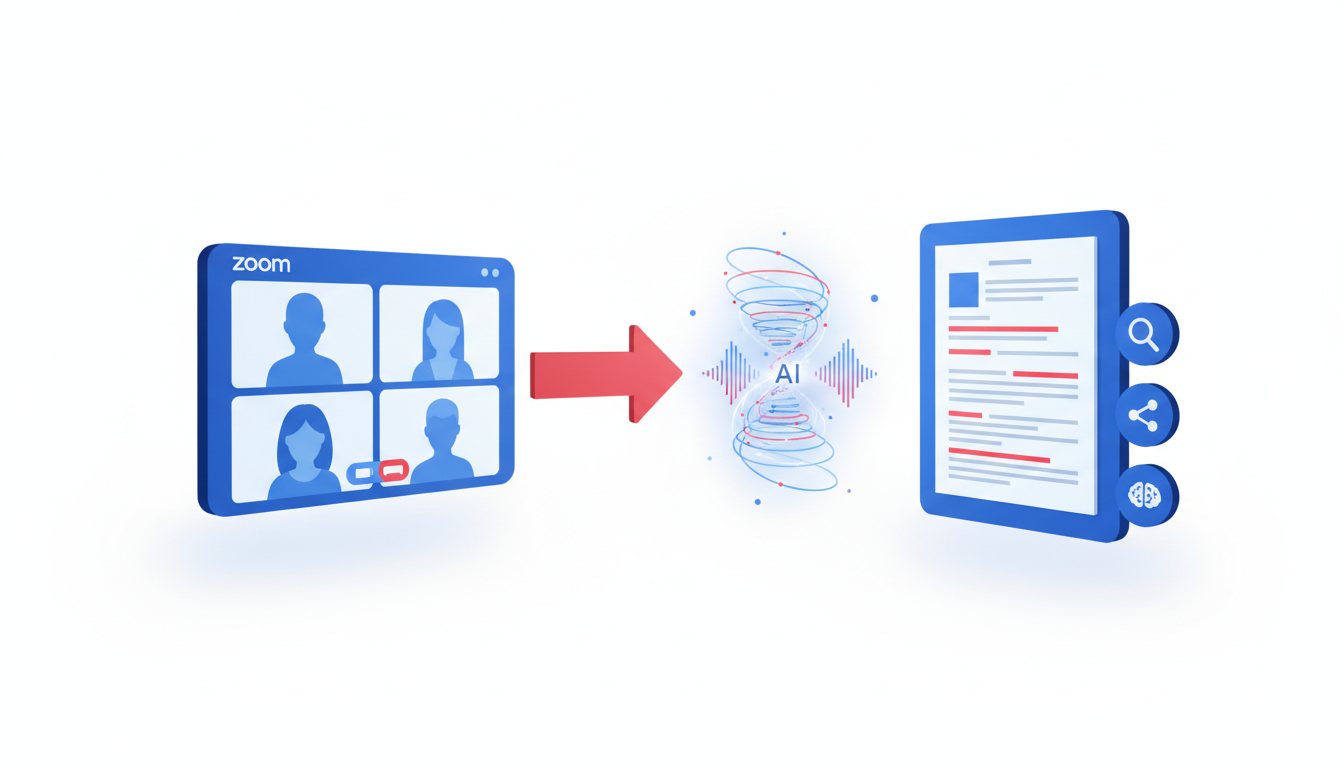
When it comes to transcribing Zoom meetings with AI, DeepScribe offers a seamless and efficient solution that goes beyond mere transcription. Here’s how you can transform your Zoom meetings into structured, actionable insights using DeepScribe.
Capture Process with DeepScribe’s Meeting Notetaker
First things first: setting up your DeepScribe workflow. DeepScribe’s Meeting Notetaker can join your Zoom meetings, capturing every word spoken. This feature lets you focus on the conversation without worrying about taking notes. Once the meeting is live, DeepScribe automatically records the audio, ensuring that nothing slips through the cracks.
With support for Zoom, Microsoft Teams, and Google Meet, the setup involves a simple integration that allows DeepScribe to auto-join meetings from your calendar. This means that the notetaking bot is ready whenever you are, ensuring that the transcription starts without manual prompts—perfect for busy managers and project leaders.
Generating Speaker-Labeled Transcripts and Action Items
After capturing your meeting, DeepScribe works its magic by generating a speaker-labeled transcript. This feature is critical for keeping track of who said what, especially in meetings with multiple participants. The AI-driven diarization ensures that attributions are accurate, saving you the hassle of manual corrections.
Moreover, DeepScribe goes a step further by extracting action items and summaries from your conversations. This capability transforms raw transcripts into actionable intelligence, highlighting key decisions and assigning tasks automatically. This means you’ll have a ready-to-use list of what needs to be done next, right after the meeting ends.
Key Insight: By turning transcripts into execution-ready notes, DeepScribe keeps your team aligned on follow-ups and actions.
Export Formats Available
DeepScribe supports a variety of export formats to suit your documentation needs. Whether you need to share the transcript as a TXT for quick edits, SRT/VTT for creating captions, or DOCX/PDF for formal reports, DeepScribe has you covered. The export flexibility ensures that you can easily distribute your meeting insights in the preferred format of your team or stakeholders.
Pro and Business plans offer comprehensive export options, including PDF and DOCX, facilitating professional sharing and archiving of meeting data. This capability is essential for team collaboration and compliance purposes, ensuring that all your meeting contents are accessible in the right format.
DeepScribe not only captures and transcribes but also enhances your productivity by converting meetings into organized outputs that drive action. If you're looking to modernize your workflow with precise, speaker-labeled transcripts and real action items, DeepScribe is your go-to tool. Explore more about its capabilities and see how it seamlessly fits into your meeting workflows on the DeepScribe Blog.
Turning Transcripts into Actionable Meeting Notes
When you leave a Zoom meeting with a plethora of decisions and action items, the real task begins: transforming those transcripts into useful, actionable meeting notes. Thankfully, AI tools like DeepScribe offer a streamlined process to do just that, ensuring nothing gets lost in translation.
Start with AI-Generated Summaries
The first step in making your transcripts actionable is to generate a concise summary. In DeepScribe, this feature is powered by sophisticated AI that identifies key points and themes from the meeting. With speaker-labeled transcripts, you gain clarity on who made which commitments. Summaries are produced almost instantly, harnessing DeepScribe’s advanced natural language processing to extract critical insights. This saves hours typically spent sifting through raw transcripts.
How It Works: Once your meeting concludes and the transcript is ready, DeepScribe's AI scans through the content, highlighting major discussions, decisions, and points of consensus.
Example: Imagine a project update meeting where deadlines and tasks were discussed. DeepScribe will pinpoint deadlines, task ownership, and priority actions, organizing them into a readable format.
Extract Action Items with AI Precision
Beyond summaries, DeepScribe excels in automatically extracting action items. These items are tagged with the responsible person's name, tasks, and deadlines, ensuring accountability. The AI can detect verbs and nouns patterns that signal tasks, refining them into a list that teams can immediately act on.
Data Accuracy: DeepScribe provides high-level transcription accuracy, ensuring your outputs reflect the meeting content accurately.
Ease of Use: With a few clicks, convert the transcript into actionable lists without the errors common in manual note-taking.
Transform Notes into Structured Documents
Once you have summaries and action items, it’s crucial to format them into professional documents. DeepScribe allows exports in multiple formats like DOCX and PDF, making it simple to share with stakeholders or team members who couldn’t attend. You can also generate follow-up emails directly from the notes, facilitating immediate and structured post-meeting communication.
Takeaway: Harnessing AI meeting notes like those from DeepScribe not only optimizes your time but also elevates team productivity by ensuring everyone knows what’s next and who’s responsible.
Leverage DeepScribe’s robust feature set to ensure that your team's efforts in every meeting are captured and actionable, enabling seamless follow-up and execution.
Real-Time Transcription and Why It Matters
Real-time transcription is a game-changer for participation and accessibility during Zoom meetings. Imagine sitting in a meeting where you can follow along with live captions, ensuring you don’t miss a word. This feature is particularly beneficial for remote or hard-of-hearing participants, offering a more inclusive environment. With real-time captions on Zoom, you can enhance engagement by allowing everyone to stay on the same page, literally.
When should you use real-time transcription tools? The answer is simple: anytime you need instant clarity and accessibility. They're ideal during brainstorming sessions, decision-heavy meetings, or when participants vary by language proficiency. These situations demand not just presence but precise understanding, which real-time captions provide.
Using real-time transcription doesn't just benefit participants; it also elevates the meeting’s outcome. Tools like Zoom’s AI Companion deliver reliable transcription accuracy, enabling straightforward post-meeting reviews. Imagine wrapping up a complex meeting and already having a transcript with speaker labels and summaries ready for action—this is how you turn discussions into results promptly.
Moreover, real-time transcription can boost productivity by eliminating the need for manual note-taking, allowing participants to focus more on interaction rather than scribbling notes. You can seamlessly share the VTT-format transcript, aiding transparency and future reference.
Incorporating tools like DeepScribe, which integrates live transcription with advanced features like AI-generated summaries and action items, means you get a comprehensive solution. It transforms your Zoom meetings into productivity powerhouses, making real-time transcription indispensable for modern remote teams.
Accuracy Playbook for Zoom Transcripts
Achieving high accuracy in Zoom transcripts requires a proactive approach to handling common challenges. Let’s explore how to enhance transcription quality, starting with troubleshooting overlaps and using custom vocabulary.
Troubleshooting Overlaps
Key Insight: Crosstalk and overlapping dialogue are major culprits in transcription errors. Addressing these can significantly improve accuracy.
Speaker Diarization: Enable speaker labeling to accurately distinguish between different voices, even during overlaps. Zoom’s AI Companion excels here with context-aware models, making it a solid choice for speaker-labeled transcripts.
Microphone Placement: Encourage participants to use individual headsets or microphones. This minimizes background noise and separates audio channels, reducing overlap issues.
Post-Meeting Adjustment: If real-time corrections aren’t possible, use DeepScribe’s advanced post-meeting editing features to refine speaker attributions. The platform supports adjustments to speaker labels and offers detailed logs for clarity.
Utilizing Custom Vocabulary
Key Insight: Integrating specific terminologies into your transcription tool’s custom vocabulary enhances accuracy, particularly with industry jargon or unique names.
Custom Vocabularies: Both Zoom and DeepScribe allow users to add industry-specific terms. This feature reduces errors by teaching the system your team’s unique language.
Regular Updates: Frequently update your custom vocabulary to include newly introduced terms, acronyms, or project-specific language. This practice ensures consistent understanding across transcripts.
Training Sessions: Conduct short sessions to familiarize users with adding custom vocabulary. This empowers users to enhance transcription accuracy dynamically.
Reducing Errors with Proactive Setup
Clear Communication Standards: Encourage clear speaking and minimize interruptions during meetings to enhance transcription clarity.
Hybrid Audio Settings: For hybrid meetings, ensure remote participants use high-quality, centralized audio devices. This minimizes transcription errors due to mixed audio signals.
By implementing these strategies, you’ll not only improve the accuracy of your Zoom meeting transcripts but also ensure they’re a reliable resource for extracting actionable insights and summaries. For those looking to maximize their transcription capabilities, DeepScribe’s integration with Zoom provides a comprehensive solution tailored to meeting the modern team's needs.
Governance and Retention: Managing Zoom Transcripts
Ensuring proper governance and retention of Zoom transcripts is essential for maintaining organizational memory and meeting compliance standards. Zoom meetings, when transcribed using either the built-in Zoom AI Companion or third-party tools, bring immense flexibility but require careful management to prevent loss of crucial data.
Retention Periods and Managing Stored Data
By default, Zoom transcripts are retained for 120 days, although this can vary, with some user-specific settings limiting retention to just 30 days. During this period, users can access and review transcripts that are automatically emailed post-meeting in VTT format. Managing these transcripts effectively means understanding your organization's specific retention settings and aligning them with your data governance policies. If longer retention is needed, exporting transcripts to more permanent storage solutions like cloud drives or internal servers is recommended.
For those seeking more flexibility, tools like DeepScribe offer robust export options in DOCX, PDF, SRT, and VTT formats. This capability ensures that transcripts are not only retained but also easily shared and integrated into other documentation workflows.
Best Practices for Transcript Privacy and Security
Transcript privacy is non-negotiable, especially when sensitive information is discussed. Both Zoom and DeepScribe emphasize end-to-end encryption, safeguarding data from unauthorized access. It's vital to establish clear protocols, such as restricting transcript access to only those who were present in the meeting or hold necessary clearance.
Consider using tools with automatic deletion features, like DeepScribe, which ensures data is not retained longer than necessary, thus minimizing risk. Additionally, ensuring compliance with standards like SOC 2 Type II further reinforces trust in handling confidential information.
By combining thoughtful retention protocols with secure handling practices, organizations can maximize the utility of meeting transcripts while minimizing risks. This balance is crucial for maintaining both operational efficiency and compliance in today's data-driven landscape.
Exploring the Tool Landscape: Alternatives and Comparisons
When it comes to AI transcription tools, several options exist to help turn your recorded meetings into actionable insights. While DeepScribe offers a comprehensive suite of features, it’s useful to understand how it stacks up against other players like Otter.ai, Tactiq, and Jamie.
Otter.ai is well recognized for its user-friendly interface and real-time note-taking capabilities. With features like live transcriptions during meetings and the ability to create shared notes, Otter.ai targets users who prioritize immediate accessibility. However, its transcription accuracy is slightly lower than DeepScribe’s Whisper-powered model, which promises industry-leading precision.
Tactiq focuses on integration with platforms like Google Meet and Zoom, capturing meeting highlights and enabling easy sharing of insights post-meeting. While it’s convenient for those using these platforms heavily, Tactiq’s offerings in multilingual transcription and speaker accuracy are less robust compared to DeepScribe, which supports over 100 languages and provides advanced speaker labeling.
Jamie positions itself as a versatile tool suitable for hybrid work environments, claiming instant processing and easy UI. Yet, users may find its process less intuitive and its ability to handle overlapping speech less efficient, especially compared to DeepScribe’s complex diarization capabilities.
Why DeepScribe Stands Out

Describe is particularly potent for teams that require a seamless end-to-end solution. Its Whisper-powered accuracy ensures your transcripts are reliable, even amidst technical jargon and background noise. DeepScribe’s capabilities extend beyond mere transcription; it generates smart summaries, action items, and can auto-join meetings to capture every detail.
DeepScribe’s multilingual support and custom AI prompts make it adaptable for diverse, global teams looking to customize their workflow outputs.
For those who manage frequent Zoom meetings, DeepScribe offers an all-encompassing package — from capturing real-time transcripts with speaker labels to exporting in various formats like DOCX, PDF, and SRT. Plus, the security features, such as end-to-end encryption and SOC 2 compliance, provide peace of mind for sensitive information.
Whether you’re a remote team manager or a project lead, DeepScribe aligns effortlessly with modern needs, promising accuracy, efficiency, and customization options. For more detailed insights on utilizing DeepScribe’s potential, explore DeepScribe’s official blog.
Conclusion: Choosing the Right Transcription Workflow
When it comes to how to transcribe Zoom meetings with AI, there are two effective workflows to explore: using Zoom’s native transcription features and leveraging DeepScribe for comprehensive outputs.
Recap of Key Points
Zoom's Native Transcription: This is ideal for quick captures with minimal setup. It offers real-time captions and VTT-format transcripts sent post-meeting. However, note the retention limits — typically 120 days, sometimes as short as 30 days — which can be restrictive for long-term access.
DeepScribe Workflow: DeepScribe shines in delivering not just transcriptions but complete meeting solutions. With features like speaker labeling, automatic summaries, and actionable outputs, it converts Zoom meetings into execution-ready notes. This accuracy is underpinned by Whisper's model, achieving high precision even with complex audio.
Implementation Checklist
Enable Zoom Native Features:
Confirm transcription is enabled in settings.
Ensure recordings are saved in the cloud for transcript generation.
Use DeepScribe for Enhanced Outputs:
Deploy DeepScribe’s meeting notetaker for real-time capture.
Utilize the custom AI prompts for tailored summaries and action items.
Export in various formats (DOCX, PDF, SRT, VTT) to fit your team's needs.
Encouragement to Try DeepScribe
If your primary goal is precise documentation and seamless follow-ups, trying DeepScribe is a wise step. Its ability to produce speaker-labeled transcripts and actionable meeting insights aligns well with the needs of team managers and project leads. Plus, with security assurances like end-to-end encryption, your data remains protected.
Expert Insight: “Choosing the right transcription tool can significantly enhance meeting productivity and institutional memory. Evaluate both the immediate transcription needs and long-term use cases when making your choice.”
For comprehensive meeting intelligence that does more than just transcribe, DeepScribe offers solutions that equip teams to act with clarity and confidence.
Frequently Asked Questions
How accurate is Zoom transcription?
Zoom transcriptions are highly reliable for most uses.
What are the retention limits for Zoom transcripts?
Transcripts may be automatically deleted after 120 days, though it can be 30 days for some users.
Can Zoom create speaker-labeled transcripts?
Yes, Zoom can produce speaker-labeled transcripts, though accuracy can vary with crosstalk.
What formats can transcripts be exported in?
Transcripts can be exported as VTT, SRT, DOCX, and PDF, among other formats.
How does DeepScribe enhance Zoom transcription?
DeepScribe offers advanced features like action item extraction and high accuracy using AI.
Final Thoughts
Transcribing Zoom meetings with AI can significantly enhance productivity and meeting effectiveness. We explored two main workflows: leveraging Zoom's built-in AI tools for a quick setup and using DeepScribe for advanced features like speaker-labeled transcripts and actionable summaries.
Choose Your Setup:
Fastest Route: Zoom's built-in transcription fits seamlessly for straightforward needs.
Best for Detailed Notes: DeepScribe offers comprehensive features for nuanced meeting documentation.
Best for Governance: Use DeepScribe for enhanced security and structured follow-ups.
Quick Implementation Checklist:
Identify Needs: Determine if speed, detail, or governance is your priority.
Select Platform: Choose between Zoom's tools or DeepScribe based on your needs.
Integrate Tools: Ensure seamless connection with your existing workflow.
Test & Tweak: Run a test meeting to adjust settings for optimal performance.
For teams aiming for efficiency with detailed documentation, DeepScribe offers speaker-labeled transcripts, summaries, action items, and easy exports. Consider integrating it into your workflow to transform your meetings starting today.
Written by

DeepScribe Team
Content Team
The DeepScribe content team shares insights on audio transcription and AI technology.