How to Add Real-Time Transcription in Zoom Meetings (Guide)
Unlock the power of real-time transcription in Zoom with our comprehensive guide. Transform raw transcripts into clear, actionable meeting notes.

DeepScribe Team
Content Team
How to Add Real-Time Transcription in Zoom Meetings (Guide)
Turn on live transcription in Zoom in just 3 minutes and transform your meetings into actionable documents. With Zoom's AI Companion, you'll not only enhance accessibility but also boost productivity—bye-bye, forgotten action items and lengthy follow-ups. This guide will walk you through enabling precise live captions and post-meeting processing, allowing you to seamlessly convert raw transcripts into organized notes and task lists. Ready to take your Zoom meetings to the next level? Let’s dive in.
BLUF: Enable and Optimize Real-Time Transcription in Zoom
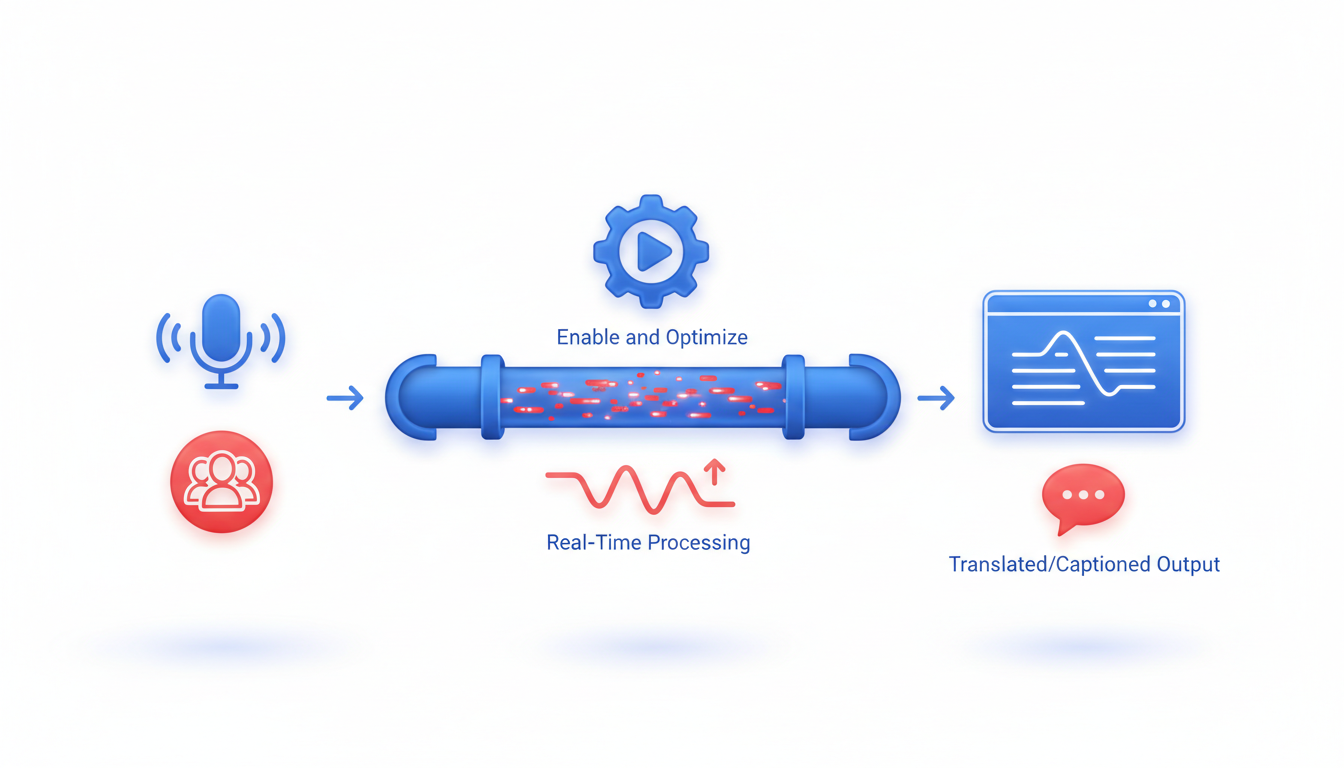
Turn on real-time transcription for Zoom in just a few minutes and elevate your meeting productivity significantly using the Zoom AI Companion. This powerful feature is designed to provide accurate real-time transcription, boasting an impressive word error rate (WER) of 7.40%, according to available data. This means fewer errors and more reliable captions compared to competitors.
Why does this matter? Well, imagine a typical Zoom meeting where every word is effortlessly transcribed and displayed in real-time with up to 99.05% LLM-based accuracy. You can focus on the conversation, ensuring no detail slips through the cracks. This setup not only enhances accessibility but also directly contributes to productivity.
Getting started is straightforward. Access the settings in your Zoom account, and enable the AI Companion for seamless transcription integration. You'll be greeted with automatic captions that are both comprehensive and timely, thanks to Zoom's average assistant response time of just 4,716.1 milliseconds, maintaining a remarkable 96% stability.
Whether you're managing a remote team or leading project meetings, having accurate meeting documentation is crucial for accountability and follow-up. This tool transforms typical Zoom meetings into structured documentation, complete with clear speaker labels and organized notes.
Ready to take control of your Zoom meetings? You can read more about enhancing your transcription workflow with complementary tools like DeepScribe, which can further turn your transcripts into summaries and action items for complete post-meeting optimization. Dive into our detailed guide for step-by-step instructions on setting this up effectively.
Checklist: Prerequisites for Using Zoom AI Transcription
To get the most out of Zoom's AI transcription features, certain prerequisites must be in place. This checklist will ensure that everything is set up correctly for seamless real-time transcription in your Zoom meetings.
1. Confirm Admin and Host Settings
First and foremost, it's essential that Zoom admins enable transcription features across the organization. Administrators should navigate to the Zoom web portal and access the Account Settings. Under the "Meeting" tab, look for In Meeting (Advanced) options, and enable Closed Captions. Additionally, toggle on Allow live transcription service to transcribe meeting automatically, which activates the real-time transcription feature.
Expert Tip: Some admins may need to enable this at the group level if your organization uses departmental permissions. Ensure any relevant privacy or compliance settings align with your organization's policies.
2. Check Participant Permissions
Once you have confirmed administrative settings, check that participants have the necessary permissions. By default, hosts control the availability of live captions during meetings. As a host, ensure that you have enabled the option for participants to view subtitles. You can do this under the Meeting Controls section by selecting the CC button and turning on subtitles.
Accuracy Insight: Allowing all participants to see captions can improve engagement and understanding, mitigating common issues like missed points or unclear audio.
3. Validate Zoom Version Compatibility
Finally, make sure all parties are using a compatible version of Zoom. The minimum required version for AI-powered transcription is version 5.2.1 or later. To check your version, open the Zoom desktop client, click on your profile icon, and select Check for Updates. This ensures that everyone benefits from the latest improvements in AI transcription technology, including the impressive word error rate (WER) of 7.40%, according to available data.
Key Takeaway: “Keeping software updated is crucial—not just for feature access, but also for security and stability,” as highlighted in Zoom's AI Performance Reports.
By following this checklist, you can confidently enable real-time transcription for Zoom, allowing every meeting to transform smoothly into useful documentation with high accuracy and swift execution.
Step-by-Step: Enable Zoom AI Companion Real-Time Transcription
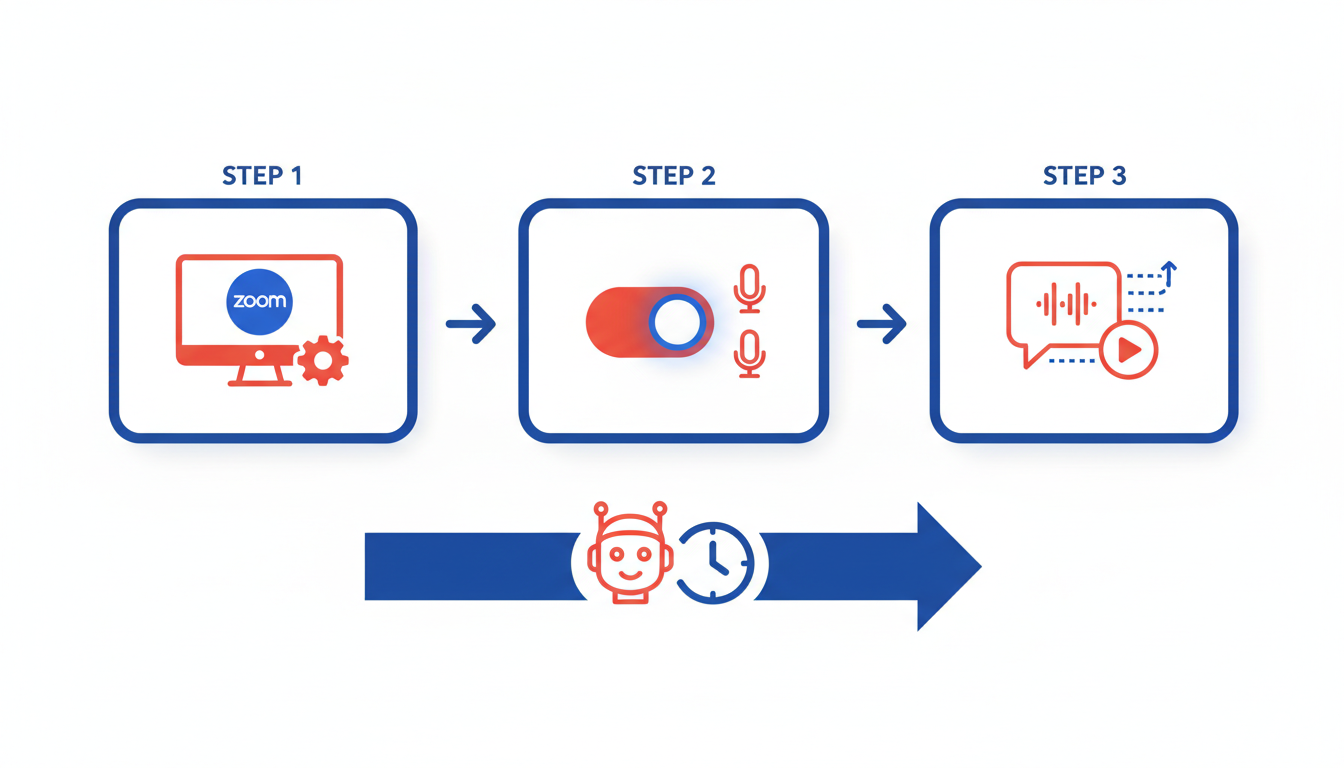
Adding real-time transcription for Zoom can be a game-changing way to enhance productivity by ensuring accurate meeting documentation. Here’s how to activate this feature using Zoom’s AI Companion, providing closed captions with the lowest word error rate (WER) available, according to available data.
1. How to Activate Transcription as an Admin
First things first, Zoom admins need to make sure that real-time transcription settings are enabled at the account level. Follow these steps to activate it:
- Sign in to the Zoom web portal as an administrator and navigate to Account Settings.
- Under the Meeting tab, locate In Meeting (Advanced) and scroll to find Closed Captioning.
- Enable the toggle for Closed Captioning and make sure the option “Allow live transcription service to transcribe meeting automatically” is checked.
If you’re utilizing Zoom’s AI Companion, your team benefits from industry-leading features like a 7.40% WER for transcription accuracy and a sub-5-second response time from the AI Assistant.
2. Ensuring Participant Access
Ensuring that all participants can see the captions is equally important. Here’s how to make sure they have access:
- As part of the Zoom call setup, remind participants to enable Closed Captioning within their Zoom client by clicking the CC button in the meeting controls.
- Encourage them to use the Transcript panel, which allows real-time access to captions as they appear, making meetings not only accessible but document-ready.
3. Validating Functionality Within a Call
You’ve turned it on—great! But how do you confirm it works during a call? Here’s a checklist to ensure smooth functionality:
- Check for the Captions button on the toolbar once the meeting has started. If visible, it means that real-time transcription is active.
- Ask a participant to confirm they can see the captions or navigate to the full transcript view.
- Done when… all attendees confirm the subtitle visibility or transcript access.
Having a reliable transcription system ensures that meeting content is transformed into structured, searchable documentation, paving the way for improved action item extraction post-meeting.
Key Takeaway: Implementing real-time transcription is just the start. By integrating these features, your team can create actionable and searchable meeting documentation. For a more comprehensive approach, explore tools like DeepScribe (see DeepScribe) which offer tailored solutions for meeting notes and follow-ups.
For visuals, see how it looks in action: 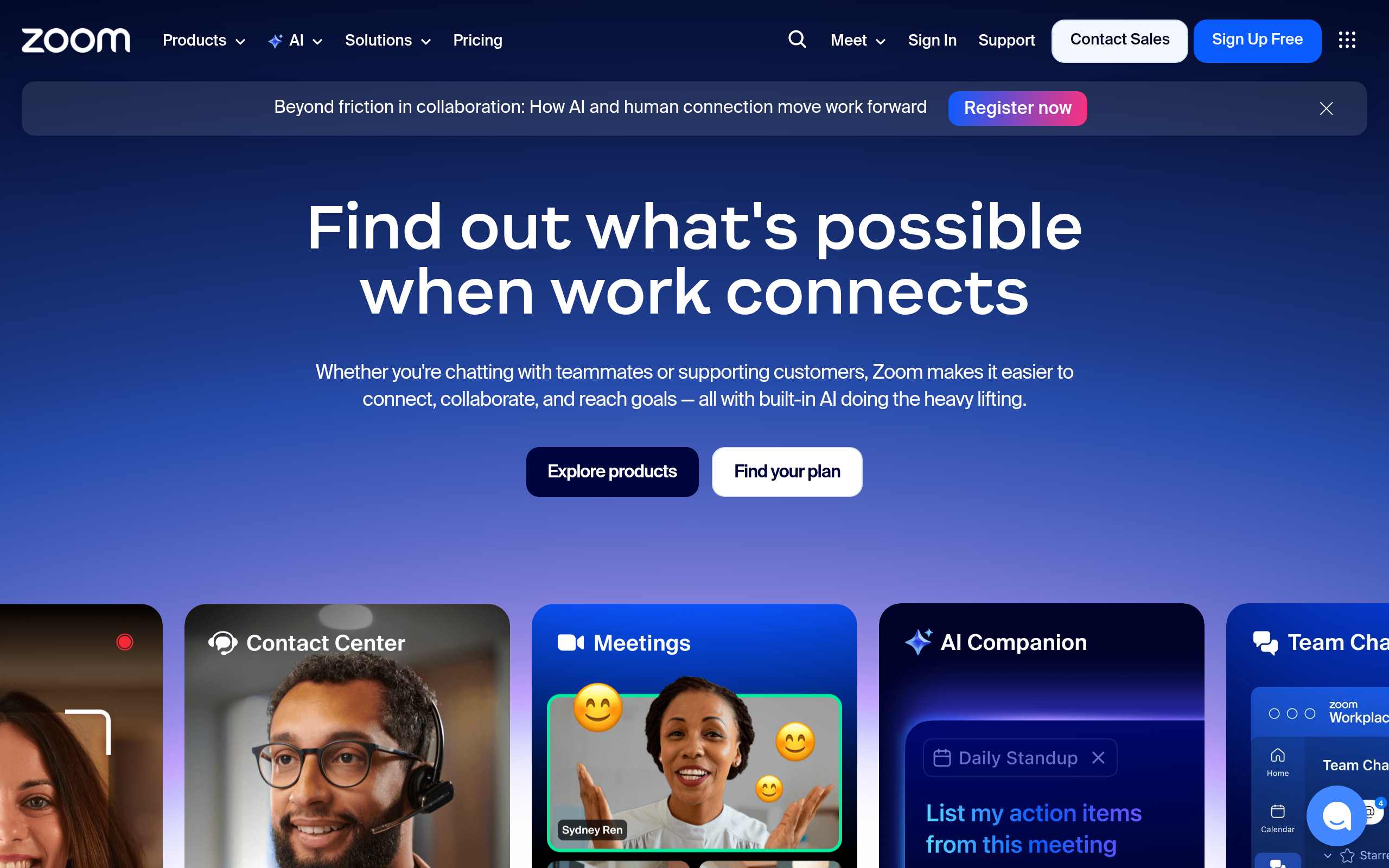
By following these steps, you’ll enhance transparency and efficiency in your meetings, ensuring no detail goes unnoticed.
In-Meeting Best Practices for Transcription Accuracy
Optimizing transcription accuracy during Zoom meetings can transform the way your team functions, reducing miscommunications and ensuring everyone is aligned. Here’s how you can achieve flawless transcription results using Zoom's AI tools:
Optimize Audio Quality
The better the audio, the better the transcript. Start by ensuring that all participants use high-quality microphones. Background noise can drastically affect the accuracy of the transcription, leading to higher word error rates (WER).
- Tip: Use noise-canceling headphones and ensure a quiet environment. Encourage participants to mute when not speaking to minimize interference.
- Pro move: Consider using Zoom's built-in audio enhancement features that filter out background noise, giving the AI the cleanest possible audio to work with.
Adopt Speaker Best Practices
Consider applying innovative techniques to enhance communication clarity during meetings. Research from Stanford suggests maintaining a proper posture and facing the microphone directly can improve the quality of your speech's capture. This small adjustment can have a significant impact on transcription results.
- Common pitfall: Speaking too quickly can lead to errors. Encourage deliberate and clear speaking.
Handle Unique Terminology Smoothly
In technical or industry-specific meetings, unique terminology may trip up standard transcription protocols. Feeding common terms and industry jargon into pre-meeting documentation or directly into the transcription software can drastically reduce errors.
- Implementation: Use Zoom's feature to upload a glossary of terms before the meeting starts. This allows the AI to recognize those terms accurately during transcription.
- Real-world example: Tech companies often preload terms like “blockchain” or “IoT” to ensure seamless transcription during discussions about innovations.
"Meeting transcription is transforming passive participation into actionable documentation," according to Sonix reports. Accurate transcription ensures that every word counts, turning your meetings into a gold mine of actionable insights.
By keeping these in-meeting best practices in mind, you optimize the transcription process, allowing you to transform raw transcriptions into valuable, clear, and actionable meeting documentation.
After-Meeting Pipeline: Converting Raw Transcripts to Actionable Notes
Transforming raw transcripts into actionable meeting documentation is a game-changer for remote teams. Let’s dive into how you can convert mere words into structured insights that drive productivity.
Step 1: Labeling Speakers for Clarity
The first step in using transcripts effectively is clear speaker labeling. This ensures that each comment is accurately attributed, preventing confusion and enhancing accountability. With DeepScribe, speaker detection is built-in, automatically tagging each remark, facilitating easy follow-up. This feature is particularly essential for teams handling multi-speaker meetings where pinpointing responsibility is crucial.
Step 2: Summarize into Key Points and Action Items
Once the speakers are labeled, the next task is distilling lengthy transcripts into key insights and action items. The AI identifies main discussion points and crafts summaries that emphasize critical insights, making it easier for team members to grasp the meeting’s essence without sifting through copious text.
In addition to summarizing, extracting action items is vital. Action items should be specific, assignable, and deadline-oriented. Here’s a simple rubric:
- Task: What needs to be done?
- Owner: Who is responsible?
- Due Date: When should it be completed?
This structure ensures clarity and accountability, aligning team efforts towards concrete outcomes.
“Meeting transcription is transforming passive participation into actionable documentation.” — Sonix reports
Step 3: Export and Share Formats
Finally, ensuring that your refined notes and action items are accessible to all stakeholders is achieved through effective export strategies. DeepScribe offers diverse formats including TXT, DOCX, PDF, SRT, and VTT, allowing teams to choose the best format for their needs—be it document archives or subtitle generation for videos.
Here’s a quick comparison of formats and their typical uses:
| Format | Use Case | Advantages |
|---|---|---|
| TXT | Basic text sharing | Simple, universally readable |
| DOCX | Rich text documents | Formatting capabilities for more polished outputs |
| Document archiving | Consistent formatting for official record-keeping | |
| SRT/VTT | Video subtitles | Enhance accessibility and engagement for videos |
Using these formats, you can effortlessly distribute meeting outputs, ensuring that all team members are on the same page and ready to execute meeting-derived plans efficiently.
Incorporating a detailed transcription-to-documentation workflow not only maximizes the value of your meetings but also boosts team efficiency.
Embrace this pipeline, and transform every Zoom call into a well-documented springboard for action.
The DeepScribe Approach: Transforming Zoom Meetings
When it comes to getting the most out of Zoom meetings, DeepScribe offers an unparalleled approach. Think of it as more than just capturing live conversations—it’s about transforming these interactions into actionable intelligence.
Mastering the Meeting Notetaker Workflow
At the heart of DeepScribe's capability is its meeting notetaker workflow. This feature allows you to capture everything discussed in your Zoom meetings with precision. Imagine this: during your meeting, DeepScribe seamlessly transcribes the conversation in real-time, enabling you to focus on what matters without constantly taking notes.
What makes this even more effective is the Whisper-powered technology behind DeepScribe, ensuring a stunning 99% accuracy. This accuracy is not just a luxury—it's essential for keeping track of critical details, especially in complex discussions.
AI-Powered Summaries and Exports
Once the meeting is over, the real magic happens. DeepScribe doesn’t just leave you with a raw transcript; it processes the information to provide AI summaries, pinpointing the essential points and decisions made during the discussion. This smart summarization can enhance productivity by offering clarity on key issues and outcomes.
Moreover, DeepScribe supports exporting these insights into various formats, from DOCX and PDF to SRT and VTT, which are invaluable for different use cases like creating subtitles or further documentation. This versatility ensures that the output is not only accurate but also highly usable.
Boosting Productivity with Speaker Labels
Effective meetings hinge on clear attributions, and DeepScribe excels here with its speaker labeling feature. Each speaker is accurately tagged in the transcript, making it easier to track who said what. This feature significantly reduces the time spent searching for specific sections of a meeting, providing an intuitive way to navigate complex multi-speaker interactions.
This detailed speaker identification is especially useful in meetings with stakeholders from different departments or in scenarios like customer consultations, where it's crucial to attribute insights correctly.
Leveraging DeepScribe for Enhanced Team Dynamics
Incorporating DeepScribe into your Zoom meetings results in notable productivity gains. The time you save and the clarity you gain allow your team to focus on executing action items rather than deciphering notes.
Expert Takeaway: "Meeting transcription is transforming passive participation into actionable documentation," highlighting the shift towards actionable insights gained through AI-powered tools.
DeepScribe's approach is not just about transcription; it's about transforming how your team leverages meeting data. If you're looking to streamline your workflow and ensure every meeting is both productive and actionable, DeepScribe is the tool to use.
For more related tips and detailed guides, explore our resources on DeepScribe.
Comparison: Native Zoom vs Third-Party Tools
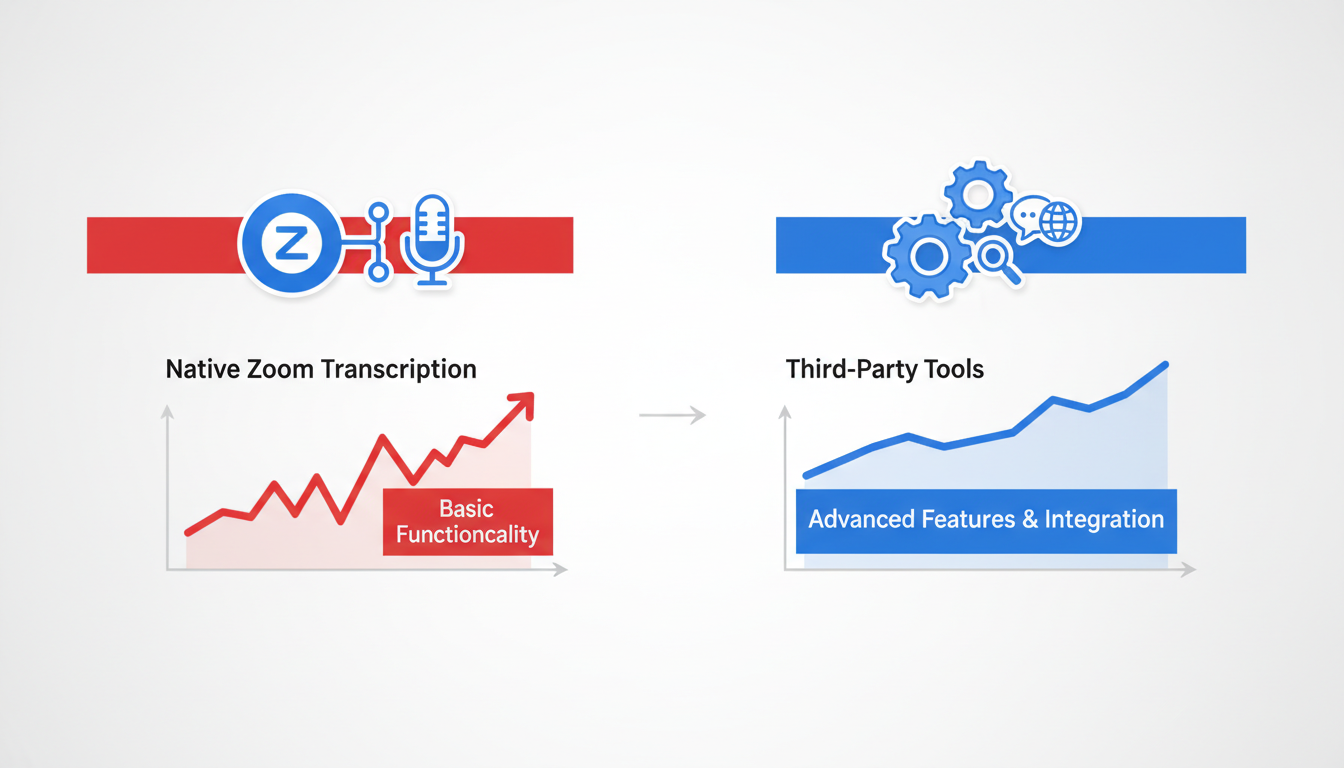
Navigating the landscape of real-time transcription tools for Zoom can feel overwhelming. Should you stick with Zoom’s built-in features, or venture into third-party territory like DeepScribe? Let’s break it down.
Zoom’s Native Tool
Key Insight: If you’re looking for a straightforward solution embedded directly in your Zoom meetings, Zoom’s native transcription tool might be the way to go.
Zoom’s live captions are powered by their AI Companion, boasting a word error rate (WER) of 7.40%, according to available data. This translates to more accurate transcriptions, minimizing misunderstandings during crucial meetings.
Takeaway: “Zoom excels in transcription accuracy and stability, driven by purpose-built infrastructure.” This means fewer transcription errors during your meetings, enhancing overall communication clarity.
Integration with DeepScribe
Key Insight: For those needing an elevated transcription experience with comprehensive documentation workflow, DeepScribe’s integration offers transformative benefits.
DeepScribe enhances Zoom’s basic functionality by turning transcripts into actionable insights. Instead of a simple text record, DeepScribe enables speaker labeling, AI-generated summaries, and automatic extraction of action items, allowing teams to instantly convert conversations into structured meeting notes and follow-ups.
Integration Benefits with DeepScribe:
- AI Summaries: Transform raw transcripts into concise overviews, highlighting key points.
- Action Items: Automatically extract tasks and responsibilities, ensuring nothing slips through the cracks.
- Speaker Labels: Maintain clarity on who said what, facilitating accountability and precise follow-up.
- Export Flexibility: Save transcripts and notes in multiple formats like DOCX, PDF, SRT, and VTT.
In Summary
Decision Matrix:
| Feature | Native Zoom | DeepScribe |
|---|---|---|
| WER (Accuracy) | 7.40% | Utilizes Whisper for high accuracy |
| Speaker Labels | Basic | Advanced with attribution |
| AI Summaries | No | Yes |
| Action Item Extraction | No | Yes |
| Export Formats | Limited | DOCX, PDF, SRT, VTT |
When deciding between using Zoom’s native transcription or complementing it with DeepScribe, consider how much post-meeting documentation your workflow requires. For an end-to-end solution, integrating DeepScribe with Zoom turns your meetings into comprehensive, actionable records that enhance productivity.
Troubleshooting Common Issues in Real-Time Transcription
Real-time transcription can be a game-changer for your Zoom meetings, but like any tech, it can hit snags. Here, we tackle common issues and provide practical solutions for each.
Fixing Audio Quality Issues
Key Insight: Clear audio is crucial for accurate transcription. Poor audio results in higher word error rates (WER), even with Zoom's impressive 7.40% WER.
- Check Hardware: Ensure microphones are functioning properly and positioned correctly. Consider using a dedicated mic or headset for clarity.
- Network Stability: A stable internet connection minimizes audio dropouts. Check your Wi-Fi strength, or switch to a wired connection if possible.
- Environment Control: Reduce background noise. Conduct meetings in quiet spaces and use noise-canceling features if available.
Handling Mismatched Speaker Identification
Key Insight: Accurate speaker labeling improves documentation quality, transforming transcripts into actionable meeting notes.
- Speaker Behavior: Encourage participants to speak clearly, introduce themselves, and allow brief pauses between speakers.
- Zoom Settings: Ensure Zoom is set to recognize multiple speakers. Test this in a controlled environment to verify functionality.
- Manual Adjustments: After meetings, use tools like DeepScribe for post-processing speaker identification if initial results falter.
Resolving Delayed Transcription Displays
Key Insight: Lag in transcription response can disrupt meeting flow. Zoom’s AI boasts a 4,716.1 ms response time, typically fast enough for real-time needs.
- Software Updates: Keep Zoom and associated apps updated to ensure optimal performance.
- Resource Management: Close unnecessary applications to free up CPU and memory resources on your device.
- Zoom Settings: Utilize Zoom's 'Optimize for video' settings cautiously; enabling unnecessary features can strain your connection.
Expert Tip: "Zoom excels in transcription accuracy and stability, driven by purpose-built infrastructure." Leverage these strengths by maintaining efficient setup practices.
Proper setup and awareness of these common issues can help ensure your Zoom transcription system runs smoothly, making real-time documentation a reliable asset for your team.
FAQs on Real-Time Transcription in Zoom
When diving into the world of real-time transcription for Zoom, it’s crucial to understand a few key elements to optimize your experience and ensure everything runs smoothly. Let's unpack these frequently asked questions.
What’s the Difference Between Captions and Transcription?
Captions and transcriptions serve different purposes, each enhancing user experience in their own right. Captions generally refer to text displayed on-screen during a meeting, similar to subtitles. They help participants follow along in real-time, especially in noisy environments or for individuals with hearing impairments. Transcriptions, on the other hand, provide a comprehensive text record of the meeting, often including speaker labels and time stamps. This text can be exported for documentation, making it easy to search and refer back to specific points later.
How Can I Ensure Privacy and Compliance?
Privacy and compliance are understandably at the forefront for many teams. Zoom’s AI Companion offers features designed with security in mind, such as file encryption and strict privacy protocols. Administrators can configure settings to regulate who has access to transcripts, ensuring compliance with organizational policies and data protection regulations like GDPR. It's vital to discuss with your team and IT department to understand how these settings align with your privacy standards.
What Are Admin vs. Participant Permissions?
In a Zoom meeting setup, admins and hosts have different permissions compared to participants. Admins can enable or disable live transcription features, decide whether captions are available, and control the visibility of the full transcript. Participants, however, can view captions during the meeting and access the transcript if permitted by the meeting host. It’s advisable for admins to communicate these permissions clearly to all participants beforehand to minimize confusion and optimize accessibility.
Understanding these distinctions not only enhances meeting productivity but also aligns with accessibility needs, making your Zoom meetings more inclusive and efficient. Embrace these tools to convert your meetings into actionable and organized documentation seamlessly.
Frequently Asked Questions
How do I enable real-time transcription in Zoom?
Enable Zoom AI Companion through the host's settings, ensuring permissions for participants are correct.
What is the accuracy of Zoom’s transcription service?
Zoom offers a Word Error Rate (WER) of 7.40%, according to available data.
Can transcripts generate actionable items automatically?
Yes, using tools like DeepScribe, you can derive summaries and action items from transcripts.
Are there any privacy concerns with using Zoom transcription?
Ensure compliance with privacy policies by reviewing Zoom's transcription settings and usage agreements.
How does real-time captioning differ from transcription?
Captions display spoken words live, while transcriptions provide a textual record which can be used post-meeting.
Conclusion
To effortlessly integrate real-time transcription into your Zoom meetings, follow these streamlined steps:
- Enable Zoom’s live transcription/captions: Access this feature to capture everything said during your meetings.
- Run the meeting with accuracy-friendly habits: Ensure clear communication and reduce background noise for the best transcription results.
- Convert transcript → summary → action items → exports: Transform your meeting discussions into organized, actionable documentation.
Leveraging tools like DeepScribe further enhances this process, turning raw transcription into structured insights and essential action items. With DeepScribe, you can effortlessly export summaries in various formats, ensuring everyone is aligned and informed.
For a seamless experience, download our meeting notes and action item template and give DeepScribe a try for efficient meeting notetaker outputs. This not only boosts productivity but ensures clarity and accessibility for all team members.
Written by

DeepScribe Team
Content Team
The DeepScribe content team shares insights on audio transcription and AI technology.