How to Export a Transcript to PDF for Free (Step-by-Step Guide)
Discover how to seamlessly export transcripts to PDF for free without losing formatting. Understand when upgrading to DeepScribe's paid plans is beneficial.

DeepScribe Team
Content Team
How to Export a Transcript to PDF for Free (Step-by-Step Guide)
You have a transcript due in 30 minutes, and your client expects a professional-looking PDF. The clock is ticking, but don't worry; you're about to discover a streamlined workflow that turns raw text into a polished deliverable without breaking the bank. In this guide, we'll start with the fastest free method to export a transcript to PDF, while ensuring the formatting is client-ready. Our approach is designed for professionals who frequently juggle deadlines and need reliable tools: clean up, format, export, and share—all without nasty surprises like watermarks or broken formatting. We’ll also explore when a paid service, like DeepScribe’s Pro/Business plans, might be the right choice for those looking at document exports at scale. Get ready to transform your workflow with expert-level precision.
Introduction: The Need for Professional Transcripts
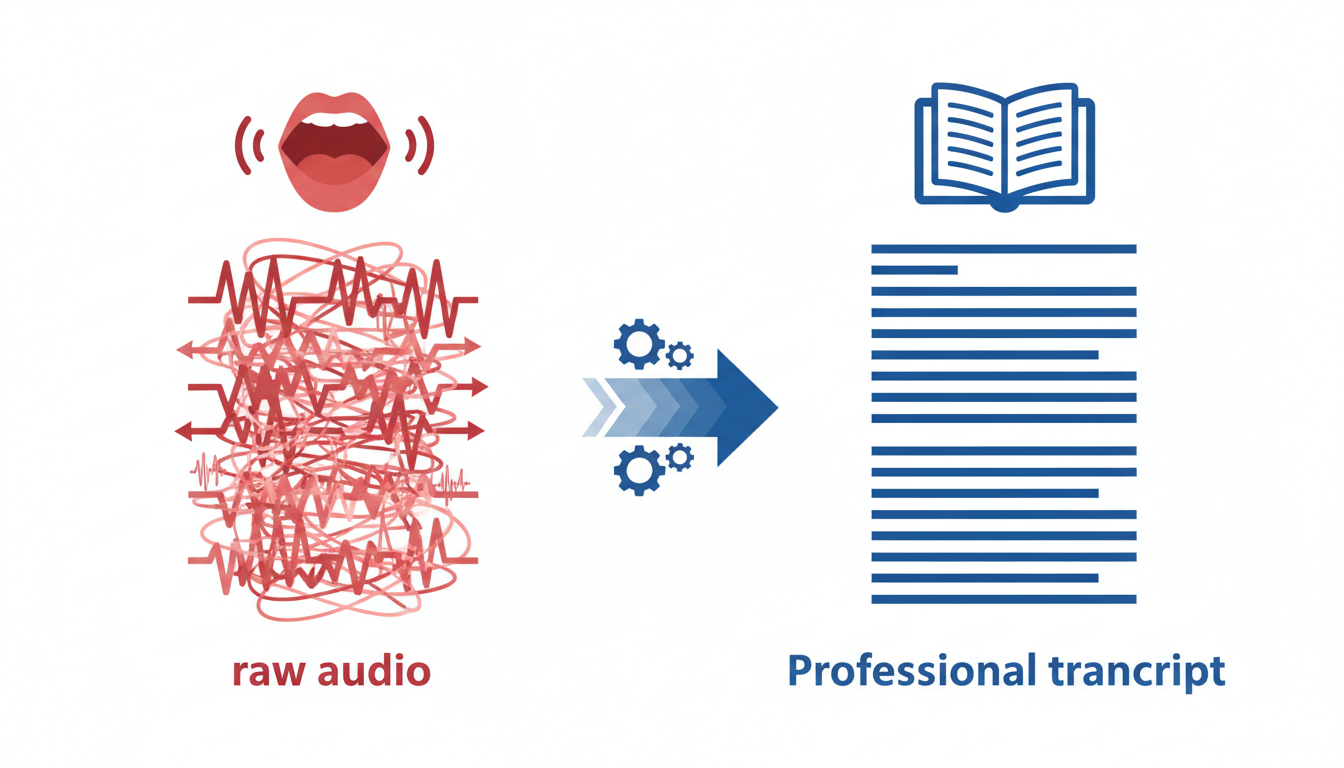
You’ve got a transcript due in 30 minutes, and the client expects a polished, professional PDF. Sound familiar? In today’s fast-paced business environment, creating clean, branded PDFs from transcripts is a necessity for professionals such as consultants, project managers, and recruiters. These professionals rely on well-formatted documents that convey information clearly and uphold their brand's professionalism. However, exporting a transcript to PDF free of charge often presents significant challenges.
When dealing with raw transcript exports, you might encounter a host of problems. Formatting issues are common, often breaking the flow of information with jumbled speaker labels and misplaced timestamps. This can lead to a document that feels more like a puzzle than a polished report, causing unnecessary frustration and wasted time during manual edits.
Moreover, there are limitations inherent in many free transcription tools that can be restrictive. Some tools, like UniScribe, limit free transcription to 120 minutes per month, with a cap of 30-minute files and just 3 files per day. Others might allow dashboard exports but with restrictions that could affect usability and appearance. These constraints can turn what seems to be a time-saving tool into a bottleneck in your workflow.
Beyond these technical challenges, there’s the matter of professional appearance. Clients expect transcripts that reflect your organization’s brand and attention to detail. A transcript that looks disorganized or amateurish can undermine confidence and professionalism. That’s where a thoughtful, client-safe process comes into play.
The key to overcoming these hurdles is a straightforward, “editable-first” approach. Download your transcript in an editable format, refine it for clarity and consistency, and then convert it to a PDF. This ensures a clean, uneditable final product that conveys not just information, but also a commitment to quality. As highlighted in our research, “The most effective approach involves downloading transcripts in an editable format first, then formatting and converting to PDF for a professional, uneditable final document.” This method provides a reliable path to creating PDFs that meet client expectations without the cost.
Quick-Start Guide: Export Transcript to PDF Free
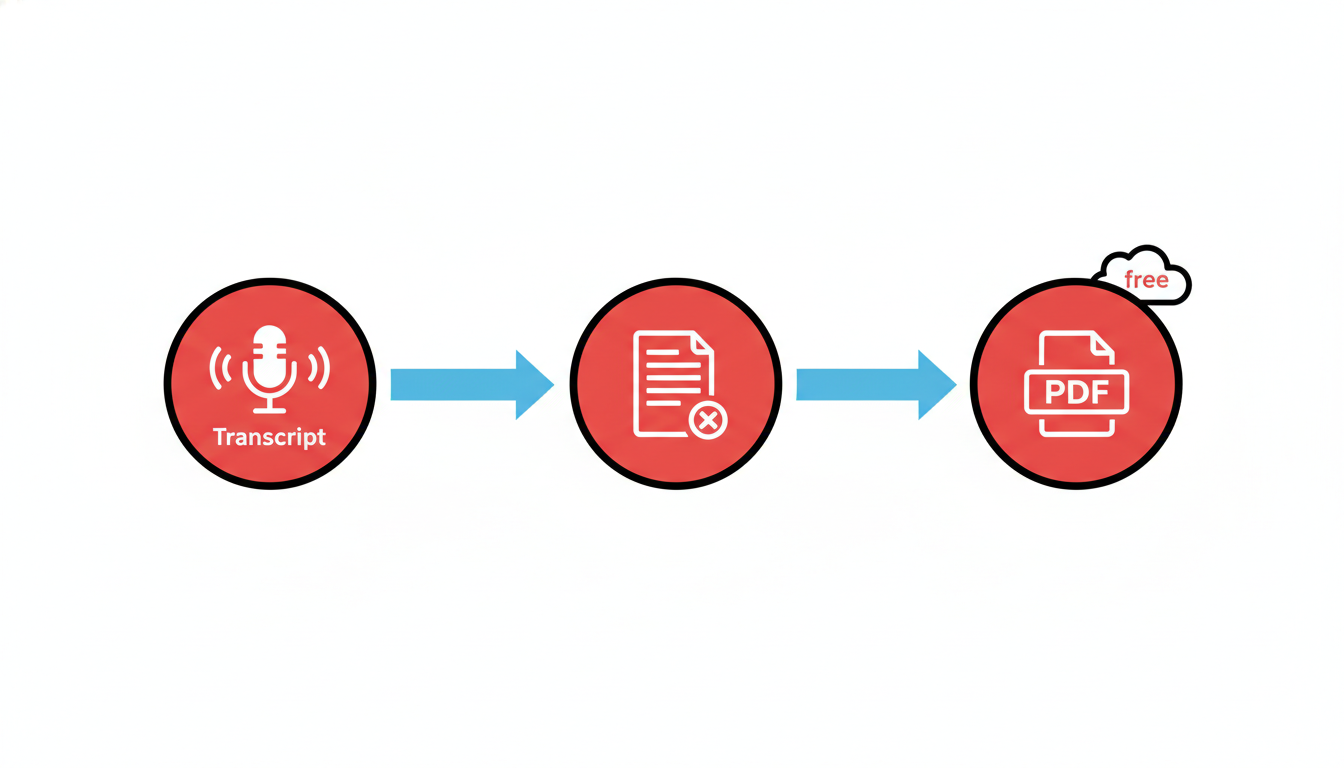
So, you're staring down the barrel of a deadline, and your client needs a polished PDF transcript in 30 minutes. Here's a straightforward, cost-free method to get you there without losing your cool or your formatting. Let's dive into the three-step process to achieve a professional PDF.
Step 1: Editable Format First
Start by exporting your transcript in an editable format. This approach is key because it allows for any necessary formatting touches before you convert to PDF. Tools like UniScribe provide up to 120 minutes of free transcription per month. Keep in mind the constraints: max 30-minute files and 3 files per day. Once you've transcribed, export your document in a TXT or DOCX format. This will be your master copy for formatting.
"The most effective approach involves downloading transcripts in an editable format first, then formatting and converting to PDF for a professional, uneditable final document."
Step 2: Format and Cleanup
Next, give your document a professional touch. Use a checklist that includes:
- Speaker labels: Clearly identify who’s speaking.
- Timestamps: If required by your client, add them at appropriate intervals.
- Headings: Use headings to separate different sections or topics.
- Page numbers: Essential for longer documents.
- Redaction notes: If necessary, indicate redacted sections.
Many organizations find that proper formatting enhances readability and professionalism, making your document truly client-ready.
Step 3: Convert to PDF
Finally, lock it in with a PDF conversion. PDF24 Tools allow easy conversion from TXT or DOCX to PDF without registering or dealing with watermarks. Simply upload your edited document and let the tool convert it into a sleek, shareable PDF.
This workflow is not just about getting to a PDF for $0 but ensuring that it’s a clean, branded, and uneditable document—just the way your client demands.
By mastering this approach, you will have a repeatable, professional-grade solution to meet those tight deadlines and demanding clients confidently. Need more advanced options? Consider upgrading to a service like DeepScribe’s Pro or Business plans for even more seamless DOCX/PDF exports.
Step 1: Download Transcripts in Editable Formats
Imagine you're on a tight deadline to deliver a polished PDF transcript for a client meeting. The first critical step? Start with an editable format like TXT or DOCX. These formats are easily manipulated, helping you preserve formatting integrity throughout the entire process.
Why Editable Formats Matter:
Starting with a document you can modify ensures you retain control over styling, speaker labels, and any necessary edits without hindrance. Editable formats like TXT or DOCX allow seamless integration of these elements before finalizing the PDF. As the research suggests, “the most effective approach involves downloading transcripts in an editable format first, then formatting and converting to PDF for a professional, uneditable final document.”
Free Sources for Editable Exports:
Several tools offer free options for exporting transcripts in these editable formats:
Transkribieren is a strong contender for unlimited dashboard-based exports to PDF without additional cost. Once you have your transcription, it's ready to be downloaded for editing. This step circumvents the common issue of hitting a paywall when using many transcription services.
UniScribe provides a free tier that includes 120 minutes of transcription per month. You can export transcripts in an editable format for up to 30-minute files, three times a day. This is incredibly useful for standard meeting durations or short interviews, offering flexibility without an immediate financial commitment.
Avoiding Formatting Loss:
When exporting initially, ensure that you choose a format known for its stability and widespread application compatibility. DOCX is particularly renowned for retaining formatting across different platforms and devices. On the other hand, TXT files are beneficial for their simplicity and ease of inserting into any word processor for further refinement.
Practical Workflow Example:
Picture having used UniScribe to capture a team meeting. You download the resulting transcript as a TXT file. This format lets you instantly start cleanup and formatting—like adjusting speaker labels or adding page numbers—before using a tool like PDF24 for quick conversion to a polished PDF. This ensures that your final document is both professional and consistent, preventing the common pitfall of formatting distortions when directly exporting to PDF from some applications.
“Many organizations find utilizing editable formats first, such as DOCX or TXT, crucial in ensuring client-ready outputs,” suggests the industry trend toward document professionalism.
By leveraging these free tools and starting with an editable format, you set a solid foundation for a smooth transition from transcription to a professional PDF deliverable. This step is not just about saving costs but also about preserving quality and controlling the final presentation to your stakeholders.
Step 2: Format Transcripts for Professionalism
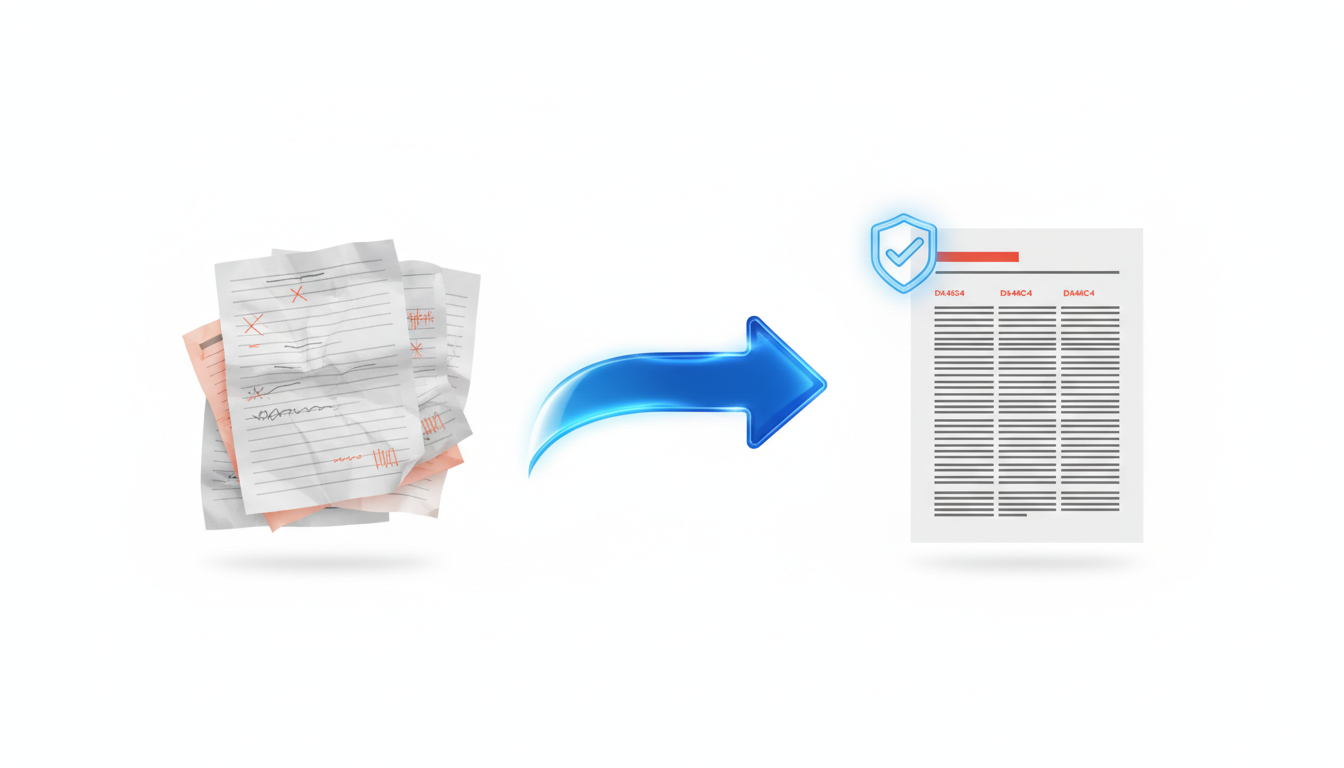
So, you have your transcript ready and it's time to polish it for professional use. In this step, we’ll dive into how you can ensure your transcript isn’t just readable but presentation-ready—perfect for sharing with clients or colleagues.
Clean Up Speaker Labels
Start with the basics: speaker labels. These help maintain the flow of the dialogue, allowing readers to easily identify who said what. It's crucial, especially in multi-speaker settings like interviews or team meetings. Aim for consistency—use full names or roles rather than switching between formats. For example, choose between “John Doe” and “Manager” and stick with it throughout.
Tidy Up Timestamps
While timestamps can be essential, especially for content like recorded meetings or interviews where you might need to refer back to specific parts, they should be strategically placed. Instead of having them interrupt every other line, consider placing them at logical breaks—such as between sections, speakers, or every few minutes.
Layout Enhancement
A clean layout can drastically improve readability. Use paragraphs to break up text, incorporate headings to delineate sections, and include bullet points or numbered lists for any action items. This will make it easier for clients to scan through and find what’s relevant to them quickly.
Add Redaction Notes
Confidentiality is often a top concern. If you're including sensitive information, use redaction notes. Clearly mark any sections that have been redacted for privacy. This not only protects confidential data but also maintains transparency with stakeholders.
Include Page Numbers
Don’t overlook page numbers. Especially for longer transcripts, page numbers ensure that the document is referenced correctly during discussions. This small addition enhances the document’s professionalism and usability.
Collaborate Using Templates and Checklists
Using a shared template can save time and ensure consistency across documents. Consider setting up a formatting checklist for your team that covers all the points discussed. This checklist could include items like:
- Consistent speaker labels throughout.
- Timestamps at strategic points.
- Clean layout with sections and headings.
- Clearly noted redactions.
- Inclusion of page numbers.
Templates help standardize outputs, especially if you're working in a team or regularly producing transcripts for clients. Tools like DeepScribe excel in making transcript formatting intuitive and efficient, especially in its Pro and Business plans.
“The most effective approach involves downloading transcripts in an editable format first, then formatting and converting to PDF for a professional, uneditable final document.”
By collaborating with your team on a shared template and staying consistent with your formatting checklist, you can ensure that your transcripts are not only tidy but also convey the professionalism that your stakeholders expect. This might be a good time to explore how DeepScribe can aid in streamlining this process with its robust suite of features.
Formatting might seem like a mundane step, but it’s the key to turning raw text into a polished, professional document. Stick with these guidelines, and your transcripts will be client-ready in no time.
Step 3: Convert to PDF: Preferred Tools and Methods
Now that you have a cleanly formatted transcript, it’s time to convert it to a polished PDF. This step is crucial to ensure your document looks professional and stays consistent across devices. Fortunately, there are several free tools available that facilitate this process without compromising the quality of your formatting.
Use PDF24 for a Simple, No-Watermark Conversion
If you're looking for a straightforward, hassle-free option, PDF24 Tools is a standout choice. It provides a seamless way to convert documents into PDFs without registration, limits, or watermarks. To convert your transcript:
- Navigate to the PDF24 website.
- Upload your document by clicking the upload area or dragging your file directly onto the page.
- Select the conversion option you need (DOCX to PDF or TXT to PDF).
- Download your newly minted PDF.
This method is efficient and ensures your document retains its structure, maintaining clear speaker labels and timestamps, which is crucial for client-ready materials.
Ensuring a Professional Appearance Post-Conversion
After conversion, always review your PDF to ensure it meets high professional standards. Here's a checklist:
- Speaker Labels: Make sure speaker differentiation is clear.
- Timestamps: These need to be accurate and consistently placed.
- Formatting: Check that bullets, headers, and page numbers appear correctly.
Maintain confidentiality by reviewing and redacting any sensitive information. This assurance is key, especially for compliance documentation in fields like legal and healthcare.
Handling Large Documents and Maintaining Structure
For larger documents, maintaining structure during conversion is crucial. Tools like PDF24 are designed to handle such tasks efficiently, preserving the hierarchy and readability of your content. If dealing with extra-large files, consider breaking them into sections before conversion to ensure quality and manageability.
Conversion Tools Comparison
Here’s a quick comparison of popular free PDF conversion tools:
| Tool | Features | Watermark | Registration Required | File Limits |
|---|---|---|---|---|
| PDF24 | Converts DOCX/TXT | No | No | Unlimited |
| Transkribieren | PDF exports post transcription | No | No | Unlimited via dashboard |
| UniScribe | Converts with file caps | No | Yes (limits apply) | 3 files/day |
“The most effective approach involves downloading transcripts in an editable format first, then formatting and converting to PDF for a professional, uneditable final document.”
Using these tools strategically allows you to produce a professional document without incurring additional costs, saving you both time and resources. Remember, the choice of tool may depend on your specific needs and volume, so align it with your workflow demands.
Free Tools and Their Constraints
When navigating the world of free transcript-to-PDF exports, understanding the constraints of each tool is crucial for creating a seamless experience without interruptions. Let's explore the specifics of some popular free options to help you make an informed choice.
Transkribieren: Unlimited Exports
Transkribieren offers the rare advantage of unlimited dashboard-based exports to PDF after transcription. While this allows for easy access to your documents without hitting an export cap, it's important to note that Transkribieren doesn’t support branded layouts. This limitation means you might need to invest additional effort into creating polished, client-ready documents elsewhere. However, for unlimited conversion convenience, it remains an attractive option nonetheless.
UniScribe: Limited Free Usage
UniScribe provides a decent entry-point for free users, offering 120 minutes of transcription per month with a limit of 30-minute files and a cap of three files per day. These constraints mean it's best suited for smaller projects or as a supplement to other tools. Unlocking the Basic subscription for $6/month expands usage significantly with access to up to 10 hours of transcription daily and premium models. This structured tiering ensures that as your needs grow, you have the capability to upgrade smoothly.
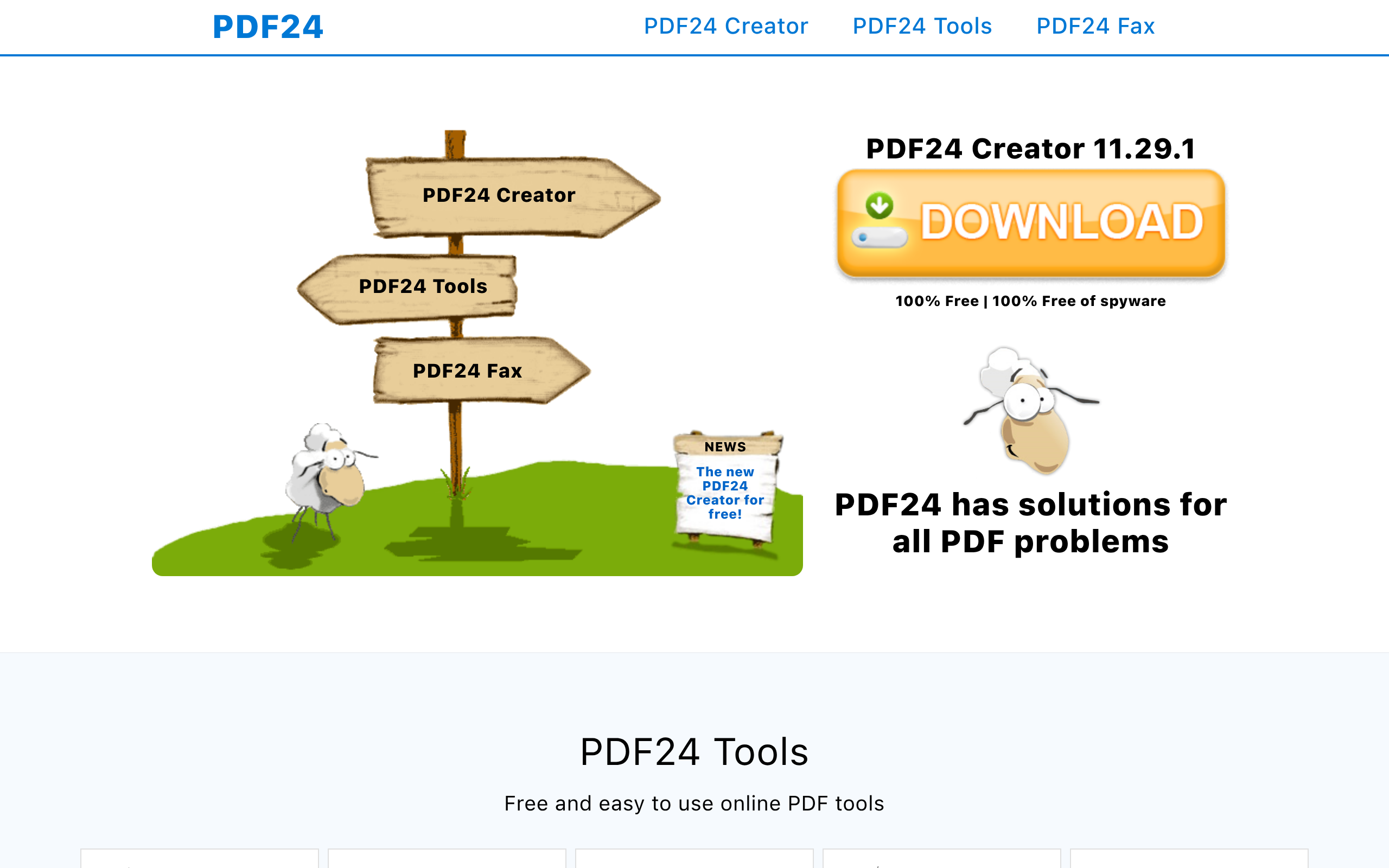
PDF24: Pre-Format Required
PDF24 is a robust online tool that enables conversion from TXT, Word, and images to PDF without any usage limits or watermarks. A highlight is its ease of use across any device without the need for registration. However, PDF24 requires you to pre-format your document to ensure it converts to a professional-grade PDF. While this extra step might be viewed as an inconvenience, the absence of watermarks and registration needs often outweighs this minor hurdle.
Below is a comparison table summarizing these tools:
| Tool | Export Limitations | Unique Feature | Free Usage Constraints |
|---|---|---|---|
| Transkribieren | Unlimited PDF exports | Easy, dashboard-based export | No branded layouts |
| UniScribe | Limited to 120 min/month | $6 subscription enhances usage | 30-min files, 3 files/day limit |
| PDF24 | Unlimited conversion | No registration/watermarks | Requires pre-formatting |
"The most effective approach involves downloading transcripts in an editable format first, then formatting and converting to PDF for a professional, uneditable final document."
Exploring these tools empowers you to balance cost and functionality effectively, ensuring your transcripts meet client standards without financial strain.
DeepScribe Export Options by Plan: When to Upgrade
Navigating DeepScribe's export options is crucial for anyone seeking professional deliverables, especially when deciding between free and paid plans. Here, we'll break down each plan's capabilities, making it clear when upgrading might be the best move for your workflow.
DeepScribe Free Plan: TXT Only
If you're just starting out or have minimal needs, DeepScribe's Free plan offers a straightforward way to generate transcripts. It's limited to TXT exports, which suits anyone needing simple text outputs without the need for complex formatting or features. The plain text format is quick and easy, but it lacks the structured elements like bold headings or speaker highlights that turn transcripts into polished, client-ready documents. For many, it's a good entry point into DeepScribe's capabilities, allowing you to explore the platform with minimal investment.
Basic Plan: TXT and SRT Exports
For those needing slightly more functionality, the Basic plan steps up with TXT and SRT export options. This flexibility is particularly advantageous if your work involves video content, as SRT files are ideal for subtitles. Exporting in SRT not only helps in creating accessible content but also in repurposing transcripts for videos, enhancing your reach. Imagine preparing subtitles automatically for your YouTube channel—SRT makes that seamless. If you frequently manage video content or live events, this plan addresses those needs without breaking the bank.
Pro/Business Plans: DOCX, PDF, SRT, and VTT
For professional-grade deliverables, the Pro and Business plans offer a comprehensive suite: DOCX, PDF, SRT, and VTT exports. These plans are designed for those who regularly deal with high-stakes presentations and require impeccably formatted documents. Exporting to DOCX means you can edit and customize the document in Word, allowing for refined formatting, graphics, and branding before locking it as a PDF for shareable, uneditable distribution. The ability to export directly to PDF saves time and ensures consistency, providing a polished, professional look right from the start.
In addition, VTT exports are invaluable for creating web video captions, ensuring accessibility and compliance with ease. With these features, the Pro/Business plans cater to organizations that need a robust, efficient workflow for high-volume transcription tasks, alongside superior customer support and advanced customization options.
“The most effective approach involves downloading transcripts in an editable format first, then formatting and converting to PDF for a professional, uneditable final document.”
When Upgrading is Worth It
Deciding to upgrade depends largely on your specific needs. If you frequently produce client-facing materials where appearance matters, the Pro/Business plans provide the formatting flexibility and export ease you require. Meanwhile, if your work involves dynamic video content, the VTT and SRT exports are game-changers, making the investment in a paid plan a prudent choice.
However, if your tasks are sporadic and involve mainly internal or draft-level needs, the Free or Basic plans might suffice. Upgrading is about aligning your plan with your deliverable requirements—ensuring each project reflects your professionalism seamlessly.
Troubleshooting Common Issues
Navigating transcript exports can sometimes lead to unexpected challenges, but with the right approach, you can ensure a professional, client-ready PDF every time. Below, we'll tackle some common issues and how to address them effectively.
Handling Broken Spacing and Formatting Issues
One common hiccup is broken spacing when converting transcripts to PDF. This typically happens during the formatting process, especially if you’re working with text initially exported in a non-editable format. The key here is to start with an editable transcript — whether it's a TXT or DOCX file. Use a reliable tool like PDF24 for conversion, as it retains formatting well without requiring registration or adding watermarks. Before converting, ensure paragraph spacing and line breaks align with your desired output using a word processor like Google Docs or Microsoft Word.
Aligning Speaker Labels Correctly
Speaker labels are crucial for clarity in transcripts, especially in meetings or interviews. Misaligned labels can lead to confusion. If labels are off, manually check your document for consistency. Tools like DeepScribe excel at automatic speaker detection, minimizing the need for manual adjustments. For manual corrections, use a standardized format, such as “[Speaker Name]:” in bold to clearly delineate who’s speaking.
Ensuring Confidentiality with Redactions
Ensuring confidentiality is often a top priority, particularly in legal or sensitive meetings. Redactions may be necessary to protect sensitive information. Before exporting to PDF, use word processors to highlight and redact text. This can be done by inserting a black box over the text or using a dedicated redaction tool if your PDF editor supports it. For example, Adobe Acrobat allows for straightforward text redactions in PDFs. Remember, once a PDF is finalized and distributed, its contents are locked, enhancing confidentiality.
Key Takeaway: Always begin with an editable format to streamline your workflow. Formatting, speaker labels, and redactions are easier to manage upfront than to correct post-conversion.
By addressing these common issues proactively, you’ll maintain the professionalism and clarity your clients expect in their deliverables — all without breaking the bank.
Frequently Asked Questions
What is the best free way to export a transcript to PDF?
Use an editable format like TXT first, format for professionalism, then convert using a free tool like PDF24.
What are the limitations of UniScribe's free tier?
UniScribe’s free tier allows 120 minutes/month with 30-minute file caps and 3 files/day.
Why should I consider upgrading to DeepScribe’s Pro plan?
For seamless DOCX/PDF exports without additional formatting, upgrading provides direct, professional outputs.
Can I use Google Docs to convert my transcript to a PDF?
Yes, but ensure proper formatting first as Google Docs may not preserve complex layouts during conversion.
Are there any watermarks in the free conversion tools?
Tools like PDF24 offer conversion without registration or watermarks.
Final Thoughts
Exporting a transcript to PDF for free is manageable by utilizing editable formats and leveraging free conversion tools. This approach suits occasional needs where transcripts are polished and manually converted. However, if your workflow demands frequent, high-quality PDF/DOCX exports, investing in a paid plan could streamline your process significantly.
For those who need scalable solutions, consider exploring DeepScribe's Pro or Business plans. With features such as direct PDF/DOCX export, multilingual transcription, and meeting integration, DeepScribe simplifies recurring transcript management. Check out DeepScribe to explore the options best suited for your needs.
Written by

DeepScribe Team
Content Team
The DeepScribe content team shares insights on audio transcription and AI technology.
Related Articles
Continue reading about this topic
How to Export a Transcript to PDF for Free: A Comprehensive Guide
Turn your transcripts into professional PDFs for free. Explore top export paths and DeepScribe's unique format offerings.

DeepScribe Team
March 3, 2026 · 20 min read · 3,844 words