How to Export a Transcript to PDF for Free: A Comprehensive Guide
Turn your transcripts into professional PDFs for free. Explore top export paths and DeepScribe's unique format offerings.

DeepScribe Team
Content Team
How to Export a Transcript to PDF for Free: A Comprehensive Guide
If you've ever sent raw transcript text, you know it often reads like a log file—disorganized and unprofessional. That's where a polished PDF becomes indispensable, keeping formatting consistent across devices and ensuring a clean printout. This guide will walk you through the most effective ways to transform your transcripts into professional PDFs without spending a dime. You'll discover a streamlined three-step workflow that begins with the simplest option, native export within your transcription app. We’ll then explore reliable free conversion paths, like converting DOCX or TXT to PDF, before diving into plan-based export formats offered by platforms like DeepScribe. Whether you're a consultant, project manager, or legal admin, you’ll leave with a practical, repeatable method to deliver client-ready documents in no time.
Transforming Raw Transcripts into Client-Ready PDFs
If you’ve ever sent a raw transcript, you know it can feel more like a chaotic script than a polished document. However, converting these transcripts into client-ready PDFs can make all the difference. PDFs preserve the formatting, ensuring a professional appearance regardless of the device used by your client. So, how do we get there without spending a dime? Let’s walk through a streamlined workflow that emphasizes free-first, deliverable-ready strategies.
One common issue with raw transcripts is their readability. They often come across as unstructured logs, riddled with breaks and misaligned speaker labels. To transform such content into a PDF that screams “professional,” start with a clear formatting plan. Divide the transcript into paragraphs, add speaker labels, and include headers where necessary. This structured formatting is crucial before you even think of exporting it to PDF.
The ‘Free-First’ Workflow
Native PDF Export: When possible, use the native PDF export feature of your transcription tool. Many platforms, like Otter.ai and Transkribieren, offer direct PDF exports that maintain formatting quality. This option is the most straightforward and typically provides the best quality.
DOCX/TXT Conversion: If a direct export isn’t available, convert your transcript to DOCX or TXT format first. Tools like PDF24 allow unlimited text-to-PDF conversions without installation or registration, making them a reliable option. If you’re using DeepScribe, their Pro/Business plans offer a seamless DOCX to PDF transition, which is highly recommended for regular users.
Consider Free Constraints: Free tools often come with limitations, such as UniScribe’s cap of 120 minutes of transcription per month and other file restrictions. Understanding these constraints ahead of time can save you from unexpected roadblocks.
Takeaway: “Select native PDF export when available for polished results,” and “Always preview exports to check formatting before finalizing.”
Finally, if you consistently produce transcripts, consider how upgrading to a paid plan, like DeepScribe's Pro/Business options with built-in PDF exports, can save time by reducing the need for external converters. Having a polished PDF ready in one click can streamline your workflow significantly.
By following this approach, you ensure that your transcripts not only convey the necessary information but also exude the professionalism that your clients expect. Remember, a clean appearance isn’t just about aesthetics; it’s about credibility and clarity, too.
Decision Tree: Export Options
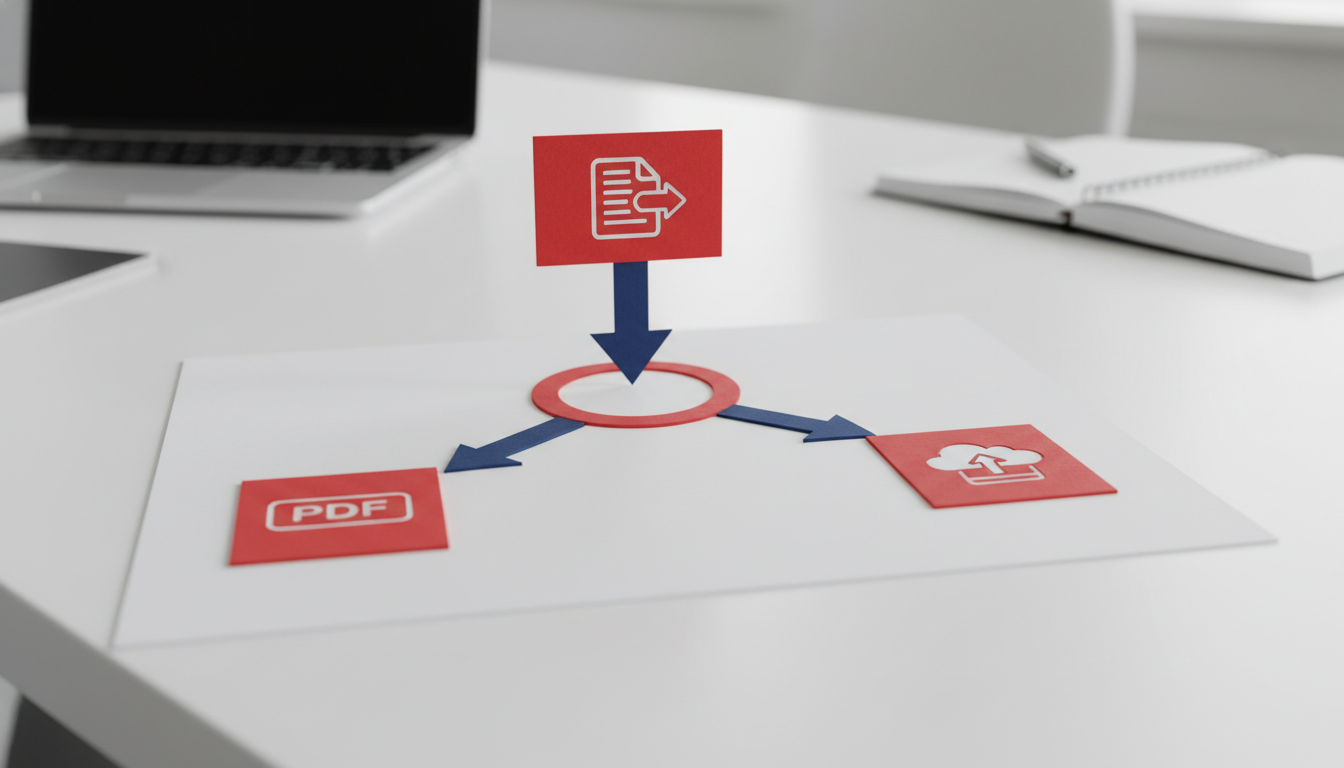
When it comes to exporting transcripts to PDF, choosing the right path is crucial for professionals aiming to deliver polished, client-ready documents. Here's how to navigate the options:
Native Export vs Converter Tools
Start with Native PDF Export:
The simplest way to achieve a high-quality PDF is through native export options available within your transcription tool. For instance, tools like Otter.ai and Reduct offer direct PDF exports, ensuring that formatting remains intact across all devices. This route is optimal if quality and consistency are your top priorities—and it's available at higher tiers of some services, like DeepScribe's Pro/Business plans.
Key takeaway: "Select native PDF export when available for polished results."
When to Consider Converter Tools:
If native export isn't an option, converting DOCX or TXT files to PDF is the next best approach. Many users rely on free online converters like Smallpdf, which are popular for their reliability. PDF24 Tools also offers unlimited conversions without installation or registration, making it an excellent free choice. Keep in mind that while these tools are effective, always preview the resulting PDF to ensure formatting integrity.
Expert tip: "Always preview exports to check formatting before finalizing."
Introduction to DeepScribe's Export Formats
DeepScribe provides a tiered approach to export options to suit different user needs. Here’s a breakdown:
- Free Plan: Offers basic TXT export.
- Basic Plan: Expands to TXT and SRT, ideal for text and caption workflows.
- Pro/Business Plans: Includes DOCX, PDF, SRT, and VTT, allowing for versatile document creation and sharing, crucial for professional settings.
Clarification: If you frequently need PDF exports, considering an upgrade to DeepScribe's Pro/Business plans might be worthwhile to save time and ensure consistency.
Decision Table
| Scenario | Best Path |
|---|---|
| Need high-quality, direct PDF | Native PDF export (if available) |
| Export TXT/DOCX first | Use converter tools (e.g., Smallpdf) |
| Frequent professional needs | Pro/Business plan upgrade |
Choosing the right export option is about balancing your need for quality with cost considerations. Always opt for native PDF exports when possible, but if you're using converters, preview your documents thoroughly.
Step 0: Preparing a Deliverable-Ready Transcript
When it comes to exporting a transcript to PDF for free, the first critical step is ensuring your transcript is deliverable-ready. Think of this as setting the stage; a well-prepared document reflects professionalism and clarity.
Checklist for a Deliverable-Ready Transcript
Before hitting export, it's essential to fine-tune the transcript format. Here’s a checklist to guide you:
Paragraph Formatting: Raw transcripts often resemble a never-ending log of text. Break these into paragraphs. Each new speaker or idea should start a new paragraph. This enhances readability and keeps the document organized.
Headings: Introduce simple headings to segment sections, such as “Introduction,” “Discussion,” and “Conclusion.” This helps readers easily navigate through the material.
Speaker Labels: Ensure every time a new person speaks, it’s clearly indicated, with labels like “Speaker 1” or using participant names if appropriate. This is crucial for understanding who contributed to each part of the conversation.
Date and Participant Information: At the top of the document, include the meeting date and list of participants. This provides context and makes the document feel complete and ready for sharing.
Pro Tip: Don’t export raw transcripts; edit into paragraphs first to improve readability.
Importance of Editing Before Export
A transcript raw and unedited can seem unprofessional and overwhelming. Proper editing ensures that the document is not just a transcript but a polished report ready for stakeholders.
Consistency: Ensure uniformity in font sizes and styles. A mix of formats can distract and look unprofessional.
Punctuation and Grammar: Automated transcription tools may miss nuances in speech. Check for errors and correct them before exporting.
Summary and Key Points: Consider adding a summary or key points section at the end of the transcript. This gives a quick overview of the discussion, which many professionals find beneficial.
Avoiding Common Formatting Errors
When preparing to hand over your transcript to a client or team, avoid common pitfalls that can mar its professional appearance:
Weird Line Breaks: Ensure paragraphs are smooth without awkward breaks. Use preview tools, like those in DeepScribe, to spot these before finalizing.
Inconsistent Speaker Labels: Stick to one labeling system. Mixing names and titles can confuse the reader.
Broken Timestamps: If your transcript includes timestamps, ensure they are correctly aligned with the text flow.
Takeaway: Always preview exports to check formatting before finalizing.
Preparing your transcript before converting it to PDF ensures it meets the necessary standards for a professional deliverable. This not only saves time but also enhances the document's impact when shared. A polished presentation starts at this foundational stage, and with DeepScribe’s intuitive features, you can easily manage these details seamlessly.
Path A: Native PDF Export Inside Transcription Tools
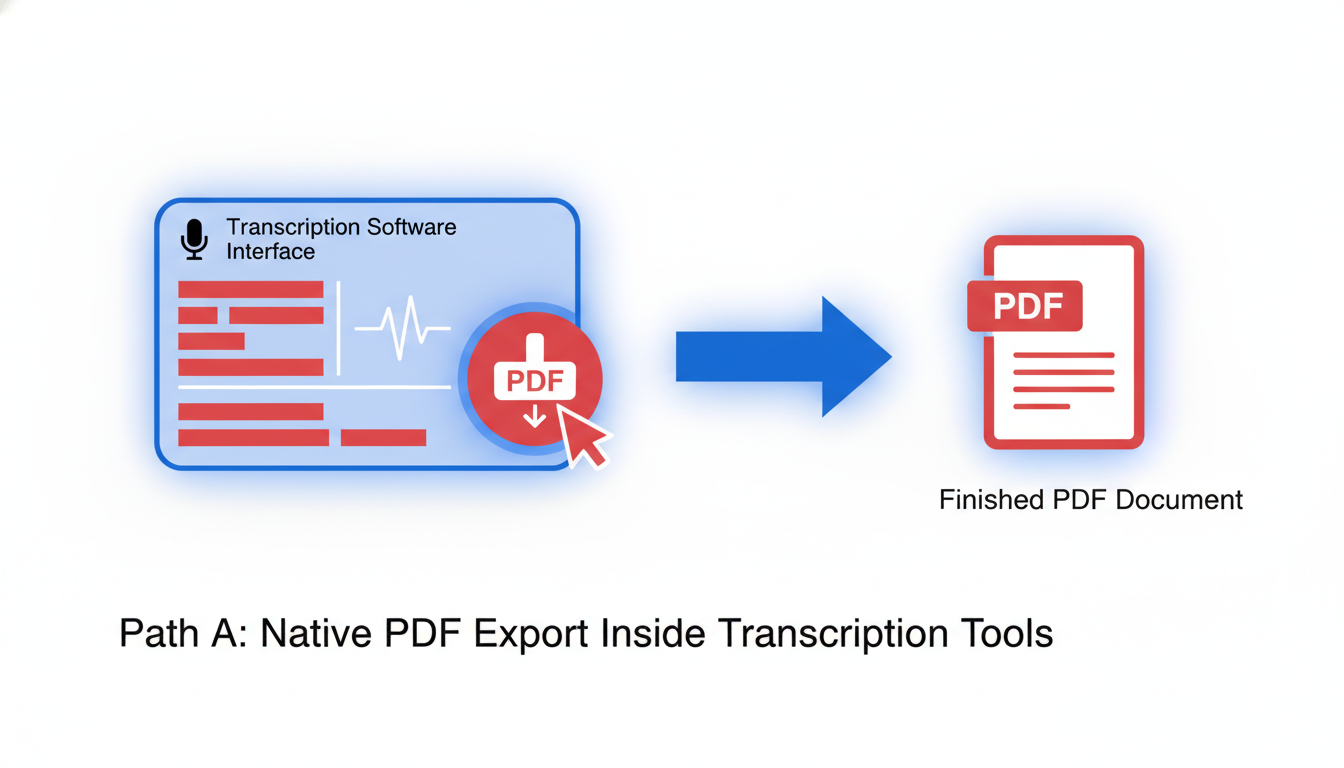
Navigating the world of transcription can feel like entering a maze, especially when your end goal is a polished, professional-looking PDF transcript. But here's the shortcut: use native PDF export features in transcription tools whenever possible. Why? Because they’re designed to keep your document’s formatting intact while delivering consistently high-quality results.
Built-In Export Features for Consistency
Transcription platforms like DeepScribe offer seamless native PDF export options, particularly in their Pro and Business plans. This means you can take your transcription, complete with accurate speaker labeling and structured paragraphing, and export it directly without losing formatting. The benefit here is clear: what you see in the app is perfectly mirrored in the PDF, avoiding any of the common pitfalls like misplaced headers or disjointed speaker tags that can occur with manual conversions.
Expert Insight: "Select native PDF export when available for polished results." This approach ensures that every transcript you share is consistently formatted, enhancing professionalism and readability.
Exemplary Tools and Their Handling
DeepScribe isn’t the only tool out there equipped with these export capabilities. Tools like Otter.ai and Reduct also support direct PDF exports, facilitating a streamlined path from spoken word to client-ready document. However, what sets DeepScribe apart is its comprehensive range of export formats across its Pro and Business tiers—covering not just PDFs but also DOCX, SRT, and VTT.
This is particularly advantageous for businesses that don’t just need a text document but also require various formats for different use cases, such as subtitling or meeting summaries.
Why Choose Native Export?
- Formatted Excellence: Your document maintains its original layout, avoiding the text jumbling that can come with third-party converters.
- One-Step Process: There’s no need to juggle multiple software; the export is straightforward and user-friendly.
- Resource Efficiency: Using native tools saves both time and the potential costs associated with alternative converting tools.
For many professionals, time and presentation are everything when sharing transcripts. Whether you're a consultant needing to deliver polished client-facing documents or a project manager maintaining consistent communication standards, native PDF export readiness provides a reliable solution.
Before settling, always ensure you're previewing exports to catch any minor formatting inconsistencies. This attention to detail transforms your transcripts from raw data into deliverables that impress.
By leveraging native PDF export features, you simplify your workflow and ensure your documents reflect the professionalism your work demands.
Path B: Export as DOCX/TXT, Then Convert
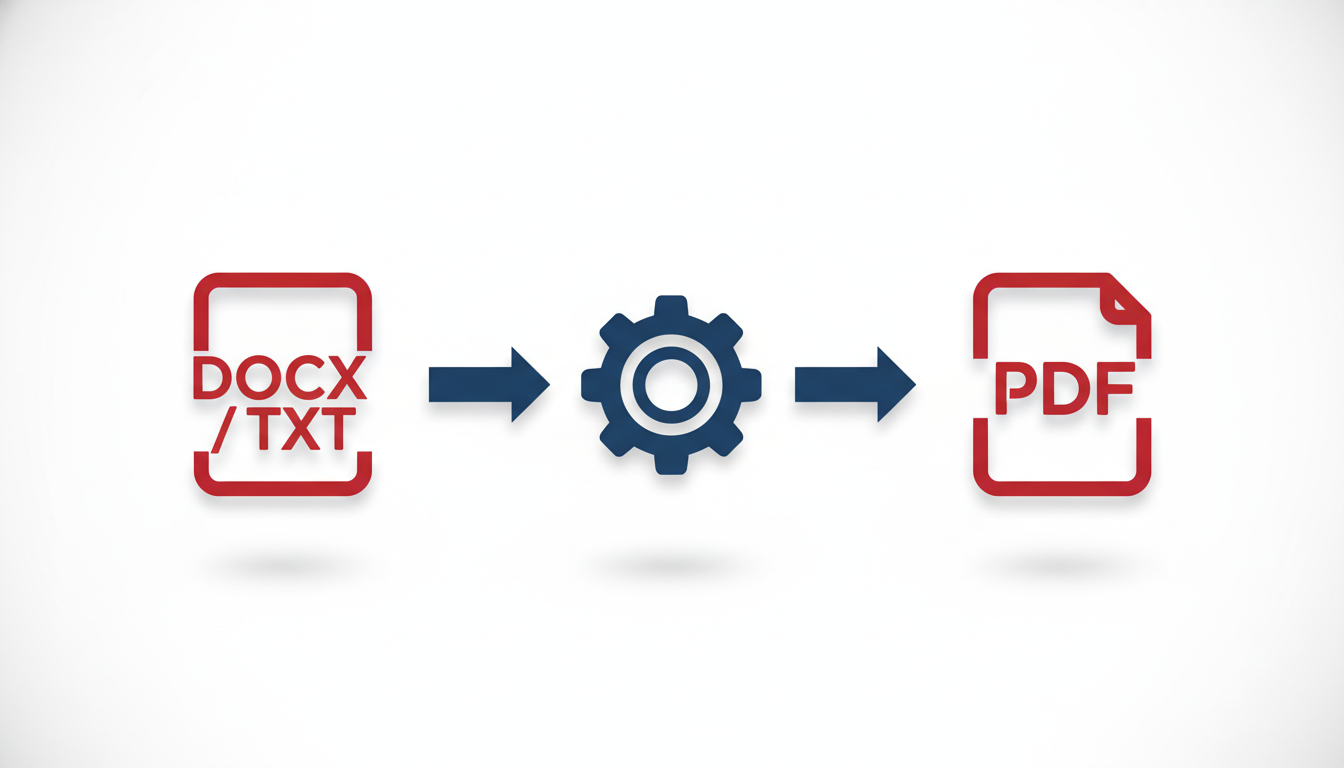
Taking the DOCX or TXT route is arguably the most flexible way to convert a transcript into a PDF, especially if you're familiar with word processors like Microsoft Word or Google Docs. Let’s dive into this straightforward method.
First, begin by exporting your transcript in a DOCX or TXT format from your transcription tool. This is where most transcription apps, including DeepScribe, come in handy. With DeepScribe, for instance, even the free plan allows you to export transcripts as TXT, while the Pro and Business plans give you the option to export as DOCX, ensuring your document retains better formatting structure with speaker labels and paragraph breaks.
Once you’ve exported your transcript, you can open the file in a word processor like Google Docs or Microsoft Word. Here, you have the opportunity to enhance readability by adding meaningful headers, ensuring consistent speaker labels, and structuring paragraphs—essential steps to make a transcript appear deliverable-ready. As emphasized earlier, “Don't export raw transcripts; edit into paragraphs first to improve readability.”
Now, let’s talk conversion. You can use free online tools such as PDF24 and Smallpdf to convert your DOCX or TXT files into PDFs. PDF24 stands out because it allows unlimited text-to-PDF conversions without needing any installation or registration. Simply drag and drop your file on their platform, and voilà, a clean PDF is generated.
For a different yet popular option, Smallpdf is widely used for its user-friendly interface and reliable performance. It’s a great alternative when you have simple documents. Remember, adding steps like a preview before finalizing is crucial—“Always preview exports to check formatting before finalizing.”
Expert Tip: Regularly deal with messy formatting or long transcripts? Consider DeepScribe’s higher-tier plans that offer DOCX and PDF exports directly, saving you time and maintaining document integrity.
However, there are some constraints to be aware of. Free tools like UniScribe provide great services, allowing 120 minutes of free transcription per month, but remember: you’re limited to 30 minutes per file and just 3 files daily. If your workload exceeds these limits, or if you often require polished PDF exports, it might make sense to explore paid tools or upgrade your DeepScribe plan.
To sum up, exporting as DOCX or TXT offers flexibility and is relatively hassle-free with platforms like PDF24 and Smallpdf. This path empowers you to refine your transcript’s presentation before conversion, ensuring your PDF looks professional. But be mindful of the limits of free tools, and remember, a paid plan can be a worthy investment if you need streamlined, frequent PDF conversions.
Path C: Scanned/Handwritten Transcripts to PDF
When dealing with scanned or handwritten transcripts, converting them to a digital format can seem daunting, but it's a necessary step for creating professional, shareable PDFs. One effective method is using OCR (Optical Character Recognition) tools to extract text from these physical documents.
Using OCR Tools: Algodocs for Text Extraction
Algodocs is a robust option for text extraction, offering up to 50 free pages per month for converting scanned documents into text. This makes it an excellent choice for those needing to digitize handwritten notes or old transcripts without a significant financial outlay. You start by scanning your document or taking high-quality photos with your smartphone, then uploading them to Algodocs. The tool efficiently processes the images, converting the scanned text into a digital format you can edit and refine.
Pro Tip: Ensure your scans or photos are clear and well-lit. Text extraction accuracy significantly improves with high-quality images, reducing manual correction later.
When to Use Scanning for Handwritten Notes
Opt for scanning handwritten notes when:
- Digitizing archives: Old meeting notes or research documents that should be preserved digitally.
- Compliance purposes: Legal or medical departments often need hard copies turned digital for record-keeping.
- Collaboration enhancement: Shareable PDFs ensure everyone sees the same content, preventing discrepancies in interpretation.
Benefits of Digitizing Physical Transcripts
Digitizing transcripts is more than just a space saver. Here are some key benefits:
- Accessibility: Easily share digital documents with stakeholders for seamless collaboration.
- Searchability: Digital text enables text search functions, saving time when sifting through large documents.
- Consistency: Converting your transcripts to PDF guarantees format uniformity across devices, ensuring what you send is what they see.
Once you've extracted the text, format it to meet professional standards—adding headers, speaker labels, and notes—before converting it to a polished PDF using free tools like PDF24. Always remember to preview your document before finalizing to catch any formatting issues, ensuring a clean, professional result.
By combining scanning and OCR tools like Algodocs with careful formatting and PDF conversion, you can transform messy handwritten notes into clear, professional documents—perfect for digital sharing.
Quality Checks and Troubleshooting
When exporting a transcript to PDF, ensuring that the document is polished and professional is essential. Below, you'll find actionable tips for checking formatting and troubleshooting common issues before sending your PDF.
Checking Formatting
Key Insight: Proper formatting ensures your transcript looks professional.
- Paragraphing and Speaker Labels: Before exporting, break your transcript into clear paragraphs with speaker labels. For example, label each speaker with their full name or role (e.g., "John Smith (Manager):") to enhance clarity.
- Headers and Subheadings: Include a header with the meeting title, date, and participant names. Use subheadings to outline key sections, like "Meeting Overview" or "Action Items."
- Timestamps: Ensure timestamps are correct and consistently formatted. This helps if stakeholders need to reference specific parts of the conversation.
Always preview exports to check formatting before finalizing.
Troubleshooting PDF Issues
Key Insight: Identifying and fixing common PDF issues will prevent miscommunication.
Here’s a guide to tackle common problems:
- Weird Line Breaks: If you encounter unexpected line breaks, adjust your original text spacing or alignment in DOCX before conversion.
- Missing Speaker Labels: Ensure speaker labels are appropriately tagged in your transcription tool before exporting.
- Broken Timestamps: Double-check timestamps for formatting errors in your editor, then re-export.
- Poor Font Quality: Choose a standard, readable font like Arial or Times New Roman in your text editor to avoid font issues in PDF.
Don't export raw transcripts; edit into paragraphs first to improve readability.
Importance of Previewing Before Sending
Key Insight: Previewing ensures your file is client-ready.
- Always preview the PDF before sharing to catch any formatting mishaps. Tools like PDF24 offer a built-in view before final download, so use this feature to ensure everything appears as intended.
- Use the PDF's print preview option to check how the document will look when printed. This can reveal layout issues that aren't visible on screen.
Comprehensive PDF Troubleshooting Matrix
Here's a handy table to help troubleshoot issues efficiently:
| Issue | Solution | Tool Limitation |
|---|---|---|
| Line Breaks | Adjust text spacing/alignment in your editor | None |
| Speaker Labels | Re-tag speakers in transcription tool | Some free tools may limit label customization |
| Timestamps | Verify and fix timestamp formatting | Low-quality transcripts can lead to misplaced timestamps |
| Font Issues | Use standard fonts in DOCX (e.g., Arial, Times New Roman) | Not all converters support custom fonts |
| Previewing | Use built-in preview features of tools like PDF24 before downloading | Online previews might differ slightly from final PDF |
For those regularly exporting transcripts, consider DeepScribe's Pro/Business plans for seamless native PDF exports, which often bypass many of these common issues.
By following these steps, you ensure that your exported PDFs are consistent and client-ready, increasing professionalism and clarity in your communications.
DeepScribe's Plan-Based Export Formats
Understanding the export capabilities of DeepScribe is essential for choosing the right plan for your needs. With three plan tiers (Free, Basic, and Pro/Business), DeepScribe offers different export options, ensuring that your transcripts can be transformed into professional documents ready for clients or internal review.
What Each Plan Offers
Free Plan: Includes basic export capabilities in TXT format. While this caters to simple text extraction, for polished presentations, additional formatting work is often necessary post-export.
Basic Plan: Upgrades to TXT and SRT exports. This is ideal for those who need basic document sharing and subtitle exports but aren't ready to commit to full document functionality.
Pro/Business Plan: Unlocks full export potential with formats like DOCX, PDF, SRT, and VTT. This versatility is a game-changer for professionals who regularly share formatted documents. Whether it's meeting transcripts in PDF for consistent viewing or subtitle files like SRT and VTT, these formats cater to diverse professional needs.
“Select native PDF export when available for polished results.”
When Upgrading to Pro/Business Makes Sense
Upgrading to a Pro/Business plan is highly advantageous if your workflow demands frequent polished output and fast turnaround. The DOCX and PDF export options simplify creating deliverables directly from your transcripts, reducing the need for third-party converters and additional formatting. This plan also provides priority processing and full AI suite features like summaries and action items, keeping your workflows efficient and consistent.
Consider upgrading if:
- You need consistent, high-quality PDF exports.
- Your work involves regular sharing of professional documents.
- You require advanced features like custom AI prompts or priority processing.
Comparing Free Options
While free options offer a good start, they often come with limitations that professionals might find restrictive. The Free tier’s TXT export is excellent for simple tasks; however, if you aim for client-ready documents, you might quickly hit a ceiling. For example, converting a TXT file to a more polished document could involve extra steps or reliance on tools like PDF24 for conversion, which allows unlimited text-to-PDF conversions without registration.
To maximize efficiency and maintain professionalism, DeepScribe’s Pro/Business solution is often worth the investment for its ease of use and comprehensive feature set. You can explore more about DeepScribe's offerings here.
By understanding your specific needs and aligning them with DeepScribe’s plan features, you ensure that your transcript-to-document pipeline is seamless, saving you time and ensuring your outputs are always top-notch.
FAQ Section
How can I export transcripts to PDF for free?
Start by checking if your transcription tool offers native PDF export. Platforms like Otter.ai often include direct PDF export options for polished results. If not, download the transcript as a DOCX or TXT file and use online converters like PDF24, which allows unlimited text-to-PDF conversions without installation or registration.
Are there limitations with free transcript conversion tools?
Yes, many free tools impose restrictions. For instance, UniScribe offers 120 minutes of transcription per month and limits you to 3 files per day on its free tier. Algodocs allows 50 free pages for text extraction from handwritten documents monthly. DeepScribe offers TXT export on the Free plan, with upgrades for more formats.
How can I ensure my transcript PDF looks professional?
Before converting, format your transcript to be deliverable-ready. This includes organizing text into paragraphs, adding speaker labels, and including headers. As a best practice, always preview exports to check for formatting issues like line breaks or missing labels.
What should I do if the online converter fails?
If an online converter results in a messy PDF, try a different tool, such as the Smallpdf platform, known for its reliability in DOCX/TXT to PDF conversions. Alternatively, consider upgrading to a tool like DeepScribe Pro/Business for guaranteed clean exports to PDF, DOCX, and more.
When is it worth upgrading to a paid plan for exporting PDF transcripts?
Upgrade when you need consistent, high-quality results without time limits. With DeepScribe's Pro/Business plans, you get access to all export formats, including DOCX, PDF, SRT, and VTT, freeing you from reliance on external converters and ensuring quick, risk-free document sharing.
Frequently Asked Questions
How do I export a transcript to PDF for free?
You can export a transcript by using native PDF export options in transcription tools or converting DOCX/TXT files with free online tools.
What are the best free tools for converting DOCX to PDF?
Free tools like PDF24 and Smallpdf are reliable for converting DOCX to PDF without installation.
Why should I format transcripts before exporting?
Formatting ensures your transcripts are professional and client-ready, avoiding readability issues.
What are DeepScribe's export options on different plans?
DeepScribe offers TXT export on Free, TXT/SRT on Basic, and DOCX/PDF/SRT/VTT on Pro/Business.
When is it worth upgrading to a paid plan for PDF exports?
Upgrade for seamless exports, more formats, and reduced workflow friction, especially if you handle large volumes.
Final Thoughts
Converting your transcripts into polished PDFs is straightforward with the right approach. To ensure the best results, use native PDF exports whenever possible for consistency and quality. Alternatively, free DOCX/TXT converters are useful for simple needs—just be sure to preview the final output. If you're frequently exporting transcripts, considering a paid plan like DeepScribe Pro or Business can streamline your workflow with native DOCX/PDF export capabilities.
By following this guide, you’ll efficiently manage your transcript exports. Curious to see how DeepScribe can enhance your workflow with export-ready solutions? Explore their transcription guides and give DeepScribe a try today for seamless, high-quality transcription management.
Written by

DeepScribe Team
Content Team
The DeepScribe content team shares insights on audio transcription and AI technology.
Related Articles
Continue reading about this topic
How to Export a Transcript to PDF for Free (Step-by-Step Guide)
Discover how to seamlessly export transcripts to PDF for free without losing formatting. Understand when upgrading to DeepScribe's paid plans is beneficial.

DeepScribe Team
March 3, 2026 · 18 min read · 3,532 words