How to Generate SRT Captions From Video (Guide)
Learn how to generate clean SRT captions from video using DeepScribe. This guide covers every step from transcription to export, ensuring high-quality captions.

DeepScribe Team
Content Team
How to Generate SRT Captions From Video (Guide)
Achieving seamless and accurate SRT captions is more than just typing text; it's about perfect synchronization. If you've ever faced the frustration of watching captions drift out of sync or crumble under the pressure of fast-paced dialogue, you're not alone. Fortunately, there's a practical solution designed specifically for video editors and creators who yearn for a straightforward, efficient workflow. Welcome to your ultimate step-by-step guide on generating SRT captions from video using DeepScribe.
By leveraging DeepScribe's powerful Whisper technology, not only will you gain access to high-accuracy transcription, but you'll also master an entire workflow—starting from video upload and transcript editing to timing checks and platform-specific uploads. Whether you're a YouTube creator or a podcast editor looking to streamline your subtitling process, this guide equips you with every tool you need, including a quick quality-control checklist to catch common pitfalls before they tarnish your content. Ready to transform your captioning game? Let's dive in.
What Are SRT Files and When to Use Them
SRT files, short for SubRip Subtitle files, are plain text documents used to display timed captions or subtitles with video content. Each caption appears in a separate sequence of time-coded entries, making it possible to sync text accurately with the video’s audio track. An SRT file typically includes a series of numbers indicating the sequence, the start and end timecodes, and the caption text itself. This time-stamping feature is crucial for creating seamless, synchronized subtitles that enhance viewer understanding and accessibility.
When it comes to choosing between SRT and VTT formats, it’s important to note a few distinctions. Both support character-encoded text for subtitles, but VTT (WebVTT) offers more flexibility, such as advanced styling and positioning options, making it preferable for web video contexts needing CSS compatibility. In contrast, SRT files are widely compatible and simpler, often the go-to for platforms like YouTube and Facebook, where minimal styling is required.
The importance of a clean SRT cannot be overstated, especially for accessibility. Accessibility compliance, such as adhering to the Web Content Accessibility Guidelines (WCAG), demands precise captioning so all viewers, including those who are deaf or hard of hearing, can fully engage with video content. "Clean" here means not just error-free transcription, but using appropriate punctuation, maintaining optimal line lengths, and ensuring a logical flow—an aspect often neglected by automated tools.
Creating accurate captions becomes essential not just for accessibility, but also for viewer engagement. Poor caption quality can result in captions drifting out of sync, improper line breaks, and misinterpreted speaker cues, leading to viewer frustration. With platforms like DeepScribe offering Whisper-powered 99% accuracy, leveraging an AI-driven transcription service can significantly reduce these issues. This ensures you get not just an SRT file, but a well-crafted and meaningful subtitle experience that retains viewer attention and meets compliance standards.
For further exploration of audio transcription and how AI-powered tools like DeepScribe can assist, check out the DeepScribe blog. Here you’ll find additional insights on generating high-quality captions and subtitles, enhancing both content accessibility and engagement.
Preparing Your Video for Caption Generation
Creating high-quality SRT captions begins with clear audio quality. Precision in transcription is heavily reliant on the clarity of your video’s audio. To achieve the coveted “99% accuracy” that DeepScribe—powered by Whisper technology—promises, ensuring your audio is crisp and free of disturbances is foundational.
Achieving Clear Audio Quality
The key here is minimizing background noise. Consider recording in a quiet environment or using directional microphones to capture the primary speaker’s voice clearly while dampening ambient sounds. Software options for noise reduction can also be useful, but it's usually best to start with the cleanest audio possible.
Enhancing Clarity
When you prepare your audio, ensure that the spoken content is at a consistent volume. This uniformity aids DeepScribe's speech-to-text functionality, helping it effectively differentiate between words and accurately identify speakers. If you have sections where multiple people speak over each other, try to separate those interactions into clearer portions if possible.
Check Speaker Identification and Language Settings
DeepScribe’s ability to label speakers is a significant advantage, especially in interviews or debates. For optimal results, ensure speaker transitions are distinct. Use pauses naturally to mark the end of one speaker and the start of another. Correct speaker identification aids in logical caption breaks, enhancing reading flow.
Moreover, set the native language or use DeepScribe’s automatic language detection to fit the primary language heard in your video. With support for over 100 languages on Pro/Business plans, this feature ensures your captions resonate authentically with your intended audience.
Audio Preparation Checklist
Pro Tip: A well-prepared audio file drastically eases the transcription process and reduces the need for extensive cleaning after transcription.
Here’s a summary table to guide your audio preparation:
| Step | Purpose | Tool/Action |
|---|---|---|
| Record in quiet area | Reduce ambient noise | Quiet room, directional microphone |
| Noise reduction | Enhance voice clarity | Noise filtering software |
| Consistent volume | Improve transcription accuracy | Normalize using audio editing software |
| Set language | Optimize language detection | DeepScribe settings |
| Pause for speaker changes | Aid automatic speaker labeling | Natural pauses |
By following these steps, you’ll establish a strong foundation for effective video to text conversion, setting the stage for producing clean, precision-timed SRT captions.
DeepScribe’s Workflow: Generate SRT Captions
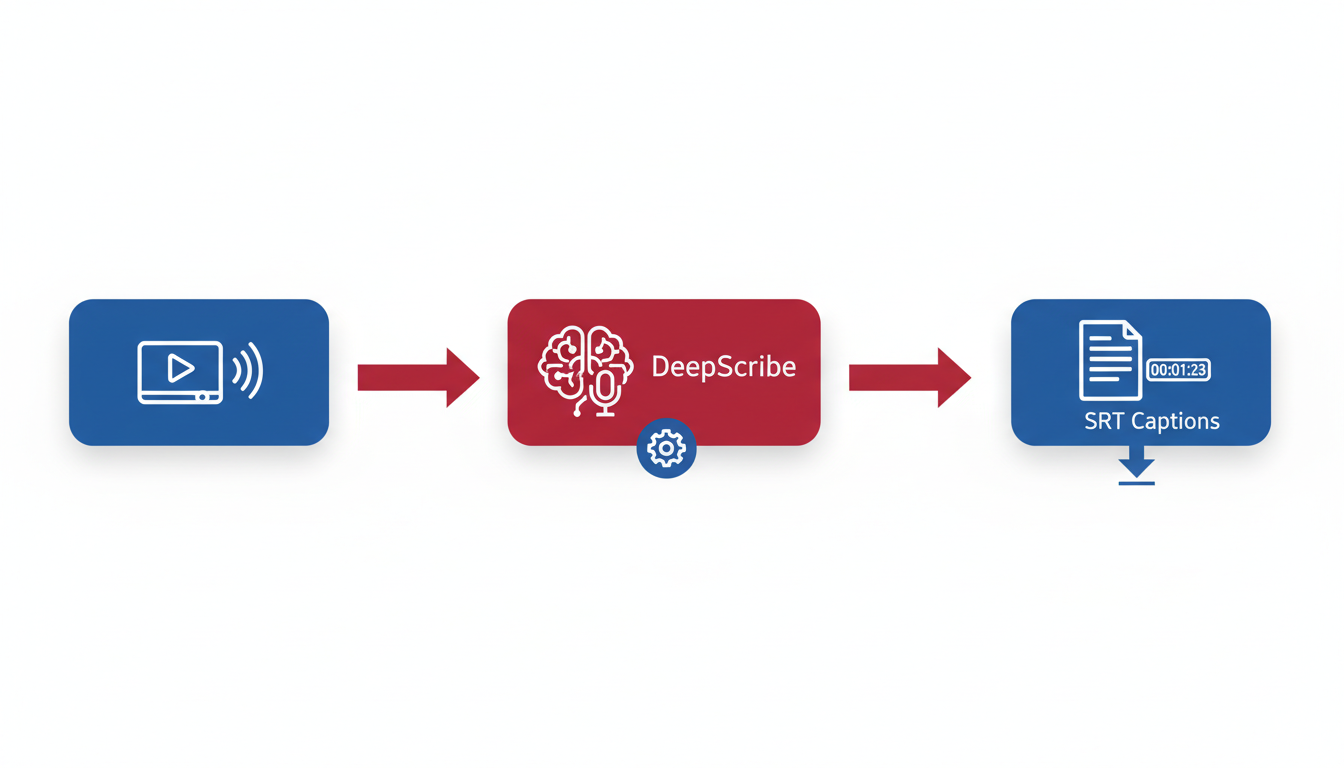
Creating high-quality SRT captions from your videos doesn't have to be a daunting task. With DeepScribe, you can streamline the process to ensure clarity and precision while maintaining a user-friendly approach. Let’s walk through the steps to generate SRT captions from video using DeepScribe, which is ideal for video editors, YouTube creators, and accessibility-conscious content producers.
Step 1: Upload Your Video
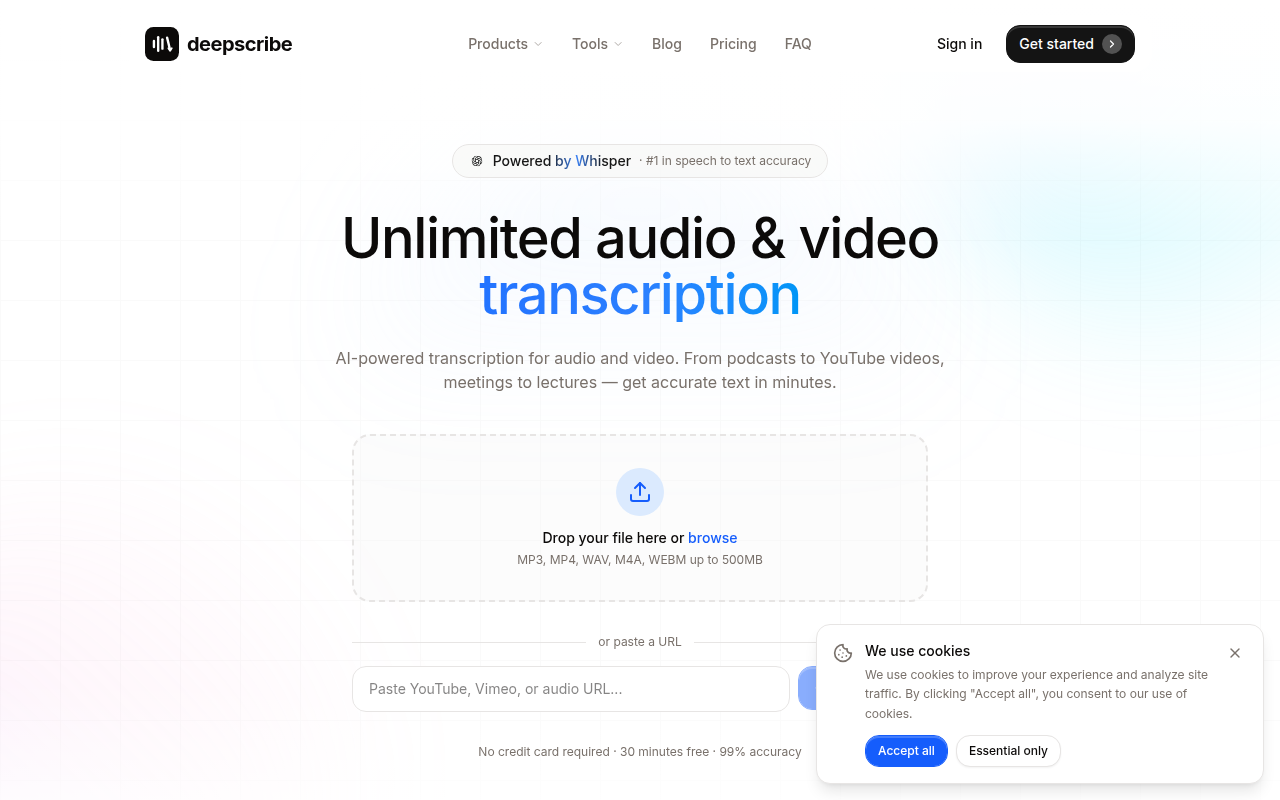
Start by logging into your DeepScribe account. Once you're in, simply drag and drop your video file into the platform. DeepScribe supports a wide range of video formats, including MP4, MOV, and WEBM, ensuring seamless uploads. Take advantage of the auto-detect features which use Whisper-powered technology claiming “99% accuracy.” This auto-detection includes language settings — a boon for multilingual content creators.
Step 2: Transcription with Enhanced Accuracy
After uploading, DeepScribe quickly processes your video. Thanks to its robust Whisper AI, it effectively handles accents and background noise, crucial for professional-quality captions. You’ll see a full transcript within minutes, reflecting DeepScribe’s lightning-fast processing capabilities, which can tackle up to 10 hours of audio simultaneously.
Step 3: Review and Edit for Precision
Once the transcript is ready, it’s important to review and edit it. This step allows you to correct any errors, particularly on names or specific jargon, which auto-captions often mishandle. DeepScribe’s intuitive interface makes this process straightforward. Utilize its speaker labeling feature, especially in videos with multiple speakers, to ensure each voice is accurately attributed.
Step 4: Segment for Clarity
Segmenting captions is key for readability. Aim for a clean SRT by breaking down text into digestible segments, ideally under 42 characters per line with natural breaks for better reading flow. Consider this your opportunity to enhance viewer comprehension without overwhelming them with long lines of text.
Step 5: Export SRT File
Satisfied with your edits? It’s time to export your SRT file. Depending on your subscription plan, DeepScribe offers various export options. The Basic plan covers TXT and SRT files, while the Pro and Business plans extend to DOCX, PDF, and VTT exports. This flexibility allows for comprehensive platform compatibility.
Two-Minute Timing Check
Before publishing, run a quick two-minute timing check. This involves playing back segments to ensure all captions sync perfectly with the video. This step is crucial for catching any timing drifts — a common failure mode in auto-generated captions.
By following this workflow, you ensure your captions are not only accurate but also viewer-friendly. For more nuanced insights into optimizing transcription processes, consider exploring related guides on our Blog | DeepScribe.
Now you’re set to create professional, accessible video content with confidence, seamlessly blending DeepScribe’s AI capabilities into your video editing workflow.
Segmentation and Exporting Clean SRTs
Creating clean SRT captions involves more than just transcription—it's about thoughtful segmentation and precise timing to ensure your captions are readable and well-synced with the video. Let’s go through best practices for segmentation and how to export using DeepScribe.
Best Practices for Caption Segmentation
A clear, readable caption helps viewers engage with your content seamlessly. Here's how to achieve that:
- Line Length: Keep captions to 32 characters per line; this avoids overwhelming the viewer and ensures content fits on various screens.
- Logical Breaks: Break lines at natural speech pauses or sentence ends. For instance, split long sentences or phrases logically to maintain the reading flow.
- Speaker Labels: DeepScribe automatically detects and labels speakers, which is crucial for dialogues and interviews. Ensure each speaker is distinctly identified in the transcript.
Fixing Names and Terms
Names and specialized terms often trip up auto-captions. With DeepScribe’s high accuracy, fixing these is simplified:
- Real-time Edits: After transcription, review to correct any misinterpretations of names or jargon. Use audio cues and context to guide corrections.
- Speaker Labels Review: Ensure speaker labels match the original dialogue accurately, enhancing clarity in multi-speaker content.
Exporting Options with DeepScribe
Depending on your plan, your exporting capabilities in DeepScribe vary. Here’s a breakdown:
| Plan | Monthly Minutes | Max File Size | Export Formats |
|---|---|---|---|
| Free | 30 | 25 MB | TXT |
| Basic | 300 | 500 MB | TXT, SRT |
| Pro | 900 | 2 GB | DOCX, PDF, SRT, VTT |
| Business | Unlimited | 10 GB | DOCX, PDF, SRT, VTT |
- SRT Export: Choose SRT for most video platforms to ensure compatibility. DeepScribe’s plans offer SRT exports beginning at the Basic tier.
- Additional Formats: For enhanced document needs, Pro and Business plans add DOCX, PDF, and VTT options.
Pro tip: Use DeepScribe’s Whisper-powered accuracy to automatically handle accents and background noise, minimizing manual adjustments.
By leveraging these practices and DeepScribe’s robust features, you can effortlessly generate caption-ready SRT files. For more transcription insights, explore our DeepScribe blog.
The 2-Minute Timing Sanity Check Method
Ensuring your SRT captions are in perfect sync is crucial for delivering a seamless viewing experience. A quick “2-minute timing check” can save you from the dreaded timing drift that ruins many a video. Here’s how you can perform this sanity check effectively.
Key Timing Issues to Spot
The main culprits in timing drift include:
- Captions starting too early or too late: This misalignment can distract viewers and make understanding difficult.
- Sudden drifts: Occur midway through the video and can gradually worsen.
- Reading speed errors: Captions changing too quickly for viewers to read comfortably.
Quick Check Technique
- Watch the video fully once: Focus on areas with rapid dialogue changes or complex audio conditions.
- Note any drifts: Pay attention to whether captions sync with the speaker’s words visually and audibly.
- Examine timecodes: Check the start and end times of captions around drift points.
Use this visual verification method to determine if adjustments are needed. For many creators, tools like DeepScribe provide precise timecodes, minimizing manual intervention. With its Whisper-powered accuracy, DeepScribe makes detecting these errors straightforward.
Tools and Assistance
While basic video tools can help spot errors, DeepScribe’s AI-driven transcription is inherently designed to mitigate drift issues with its 99% accuracy. It offers timecode precision and allows easy caption editing for a seamless sync.
Common Fixes
Once you've identified mismatches:
- Shift timecodes: Slightly adjust the timing for individual or batch captions.
- Check audio clarity: Ensure audio peaks align with beginning and end of captions.
- Re-segment: For drifting captions, re-segment to match speech flow better.
Remember, keeping visuals and captions aligned is vital for a high-quality output. Here’s a handy comparison to streamline your checks:
| Issue | Symptoms | Fix |
|---|---|---|
| Timing drift | Captions off-sync consistently | Adjust timecodes, double-check segments |
| Quick capt-out | Captions change too rapidly | Extend duration, check reading speed |
| Late starts | Captions miss dialogue start | Shift start time, recheck audio peaks |
By dedicating these quick minutes for checks, you ensure your captions are viewer-friendly and prepare your content for a variety of platforms.
Expert Insight: "Captions that stay in sync boost engagement and accessibility significantly — don’t skip this simple oversight!"
For more on managing caption workflows, explore the DeepScribe Blog for advanced tutorials and insights. With tools like DeepScribe, achieving perfect sync is within reach.
Uploading Your SRT to YouTube: A Step-by-Step Guide
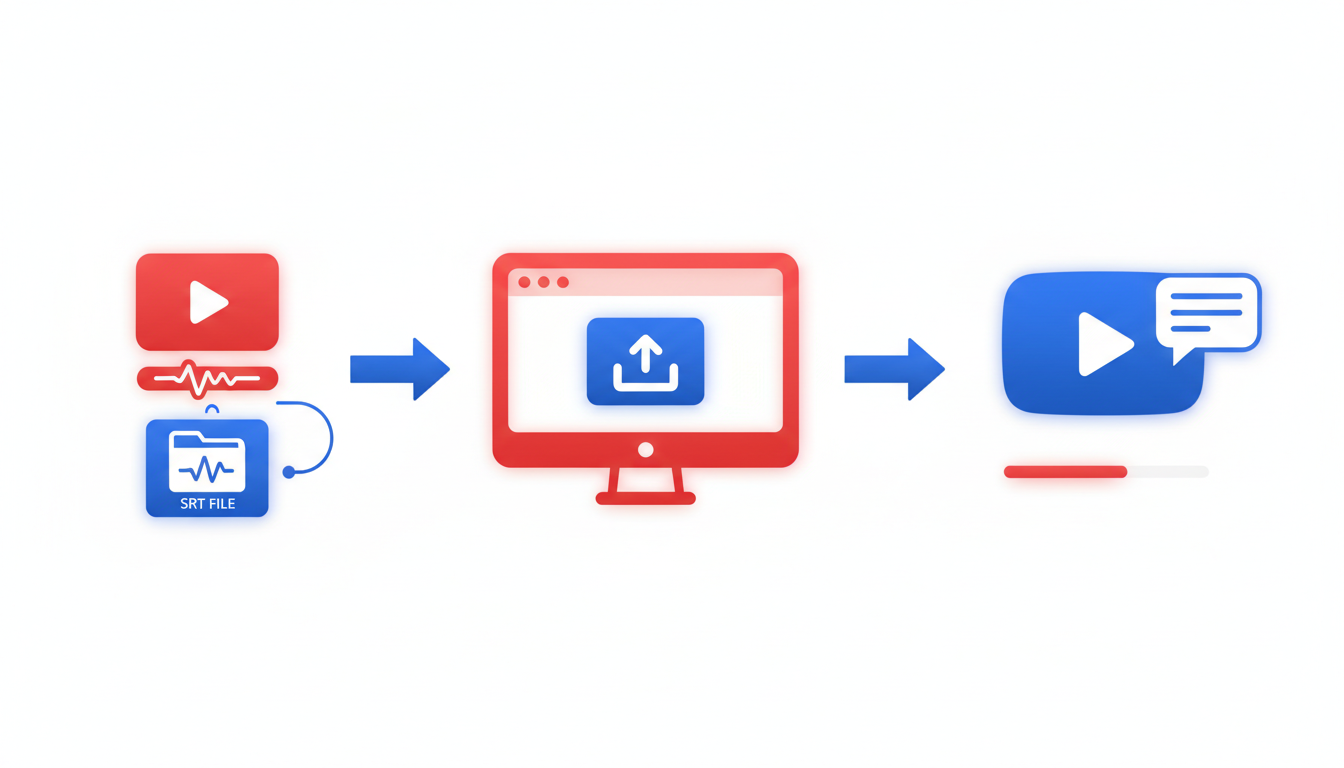
Alright, you've got your polished SRT file ready to enhance your video with perfect captions. Now, it’s time to upload those SRT captions to YouTube. Let's break it down into easy steps, highlighting the benefits of both YouTube’s built-in tools and when exporting SRT is worth your time.
Uploading SRT to YouTube
Navigate to YouTube Studio: Log in to your YouTube account and head over to YouTube Studio. Here, you’ll find all your uploaded videos along with various management tools.
Select Your Video: Locate the video you want to caption. Click on the ‘Subtitles’ option in the left-hand menu. You’ll see a tab where you can manage your captions.
Upload Your SRT File: Click ‘Add’ next to the language of your captions. Choose ‘Upload file’, then select ‘With timing’. Import your SRT file from your computer. YouTube supports various formats, but SRT is widely compatible and ensures your timing stays intact.
Review and Save: After uploading, you’ll have the chance to review and edit—ensure everything aligns perfectly with your video content. Hit ‘Save’ once you’re happy.
Pro Tip: Dragging and dropping your video captions files directly can save a ton of time, especially if you’ve refined them using tools like DeepScribe’s export features.
Why Use YouTube’s Built-in Tools?
YouTube’s automatic captions provide a good starting point, especially for short videos or when budget constraints are tight. It offers:
- Immediate Accessibility: Auto-generated captions are quick and easy, and you can always refine them later.
- Free Tooling: For small-scale projects, YouTube’s built-in editor is cost-effective.
When Exporting SRT is the Better Option
Exporting your SRT with a tool like DeepScribe before upload shines for a few reasons:
- Accuracy: Achieve higher precision with names, terms, and complex language.
- Customizability: You get to control style, breaks, and timing extensively.
- Drift-Free Experience: Minimize sync issues, especially useful for longer videos.
For creators who need those captions spot-on—like marketing teams or podcast editors—using DeepScribe to generate and refine your SRT file is a real game-changer.
In summary, choose YouTube’s built-in tools for quick edits and cost-free options. But when top-quality, polished captions matter most, exporting with DeepScribe is your best bet. Whether you’re a beginner or a pro, DeepScribe ensures accuracy and efficiency in your captioning workflow.
Alternate Workflows: Free Options and When to Use Them
Exploring YouTube’s free subtitle generation features can be a game changer, especially if you’re cost-sensitive. YouTube offers built-in tools that automatically generate captions for videos uploaded to the platform. These auto-generated subtitles provide a quick and easy way to add captions at no additional cost. While these may not be perfect, they are a solid starting point for creators who want to improve accessibility without incurring extra expenses.
The key advantage of using YouTube’s free features is the seamless integration with its platform. As soon as you upload a video, YouTube starts working on generating subtitles, leveraging its advanced speech-to-text algorithms. You can then review, edit, and correct these captions directly within YouTube Studio. For many creators, this is often adequate, particularly for simpler projects or when budget constraints are a priority.
However, when comparing free vs. paid options, it’s essential to consider specific needs such as accuracy, timing, and language support. Free tools might struggle with intricate audio signals, heavy accents, or industry-specific jargon. This is where paid tools like DeepScribe, driven by Whisper's 99% accuracy, excel. With its detailed speaker labeling and multilingual support, DeepScribe ensures precise and contextually accurate captions—making it ideal for professional or multi-language content.
Expert Insight: Free options can get your foot in the door, but they might not meet the 'clean SRT' quality standards required for professional publishing.
Deciding when to invest in SRT exports largely depends on your content’s complexity and your need for control. If your project involves detailed dialogues or requires accurate speaker differentiation, you might find DeepScribe’s capabilities indispensable. The platform provides a straightforward workflow that includes real-time transcription, thorough editing, and reliable export options like SRT or VTT, compatible with various platforms. For creators who envision expanding their content's reach across multiple channels, a paid tool often saves time and enhances content quality significantly.
While YouTube’s free features offer a practical entry point, investing in a robust tool like DeepScribe can elevate your production value, ensuring your captions do more than just convey words—they tell a story accurately and engagingly.
For a deeper understanding of crafting high-quality subtitles, explore our guide on how to make subtitles for YouTube free and see where exporting SRT can take your content to the next level.
Troubleshooting SRT Issues
Creating SRT captions can be tricky, but understanding common pitfalls helps in producing clean, readable results. Here’s a guide on resolving frequent SRT failure modes.
Drift and Misalignment: One of the main issues is caption drift, where subtitles gradually fall out of sync with the audio. This often happens with longer videos. To fix this, a quick 2-minute timing check is essential. Scan the beginning and end of your video to ensure captions align perfectly with spoken words. If you notice misalignment, adjust the timecodes in your SRT file. Tools like DeepScribe streamline this process by maintaining high accuracy and syncing, leveraging their Whisper-powered technology.
Line Breaks and Structure: Well-structured captions enhance readability. Avoid breaking lines in the middle of sentences unless absolutely necessary. Each caption should be concise—ideally no longer than two lines on screen. Maintain logical breaks, like ending a caption at a natural pause. DeepScribe's export options allow for adjustments during and after the initial transcription.
Reading Speed: Ensure captions aren't too fast or too slow for viewers to read comfortably. An optimal reading speed is around 150-160 words per minute. If viewers struggle to keep up, consider splitting longer lines into shorter phrases. This is vital to maintaining accessibility, particularly for users relying on captions.
Speaker Changes: In dialogues, properly label speaker changes to avoid confusion. DeepScribe excels here by offering speaker labeling, which helps in automatically distinguishing who says what—an especially useful feature when handling complex multi-speaker videos.
Pro Tip: Regularly incorporate a caption QC checklist. This includes checking synchronization, ensuring logical line breaks, verifying reading speed, and confirming accurate speaker labeling. By addressing these areas, you significantly reduce the risk of publishing captions that frustrate viewers.
Handling these common issues not only improves the quality of your captions but also enhances overall viewer experience. For more detailed guidance on caption preparation, visit the DeepScribe blog where you'll find a plethora of resources on creating efficient transcription workflows.
Frequently Asked Questions
What is a clean SRT file?
A clean SRT file has proper line breaks, logical punctuation, and accurate timing to ensure readability.
How does DeepScribe handle different languages?
DeepScribe auto-detects languages and supports over 100 languages in Pro/Business plans.
Why do captions drift over time?
Caption drift can occur due to incorrect timing codes or audio issues affecting synchronization.
Can I edit SRT files after exporting them?
Yes, SRT files can be edited using text editors to adjust timing or fix errors.
Is there a free way to generate captions for YouTube?
Yes, YouTube offers built-in tools to generate captions for free, though they may require manual corrections.
Conclusion
Generating SRT captions from your videos doesn’t have to be a daunting task. By following this streamlined process—preparing, transcribing, quality checking, exporting, and uploading—you can ensure accuracy and enhance the viewer experience. Here are the key takeaways:
- Preparation: Select a clear, high-quality recording for the best transcription results.
- Transcribe: Use tools like DeepScribe to efficiently transcribe your video audio.
- Quality Check: Always double-check timing and text accuracy to avoid errors.
- Export: Save your file in the SRT format, compatible with most video platforms.
- Upload: Add the SRT file to your video hosting platform for seamless captions.
To get started, try generating an SRT from a short clip to familiarize yourself with the process. Once comfortable, you can scale up to longer videos. For a more detailed workflow, explore DeepScribe’s solution, and if you’re looking for a no-cost option, check out the YouTube free subtitles guide.
With these resources, you’re well on your way to making your content more accessible and engaging. Happy captioning!
Written by

DeepScribe Team
Content Team
The DeepScribe content team shares insights on audio transcription and AI technology.
Related Articles
Continue reading about this topic
7 Best AI Captioning Tools for Videos (SRT/VTT Ready)
Discover the best AI captioning tools emphasizing accuracy and export readiness. DeepScribe is perfect for fast, reliable SRT/VTT outputs, ideal for creators.

DeepScribe Team
February 28, 2026 · 22 min read · 4,266 words